The Dashboard in My Studio Manager is designed to give you a clear overview of your studio’s activity in one convenient place. It acts as your central hub, allowing you to quickly access important information, key tools, and helpful resources within the platform.
From the dashboard, you can easily monitor studio activity, review important statistics, and navigate to frequently used features. This helps you stay informed and manage your studio more efficiently throughout the day.
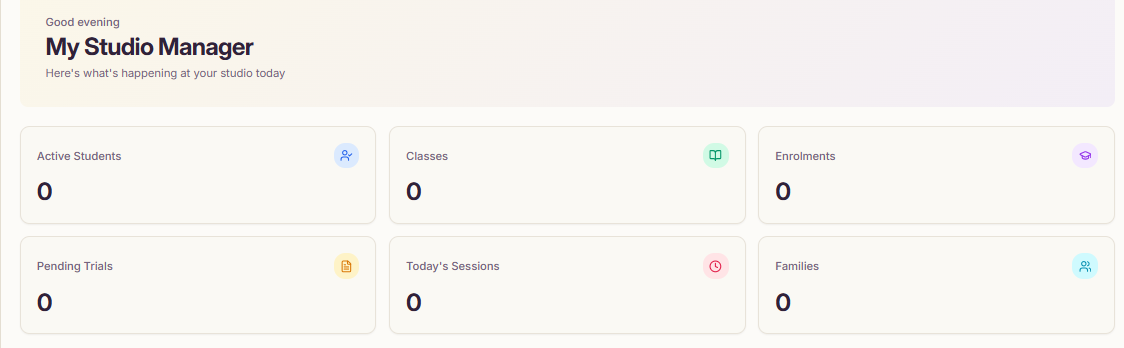
The Class Manager Dashboard provides a quick overview of key studio statistics, helping you monitor activity and stay up to date with what’s happening in your studio.
From this dashboard, you can quickly view:
Active Students – The total number of students currently enrolled in your studio.
Pending Trials – Students who are scheduled for a trial class but have not yet enrolled.
Classes – The total number of classes currently running.
Today’s Sessions – The classes scheduled to run today.
Enrolments – The total number of active enrolments across all classes.
Families – The number of active families registered in your studio.
This overview allows you to quickly monitor your studio’s activity and identify important updates such as new trials, enrolments, or daily class schedules.
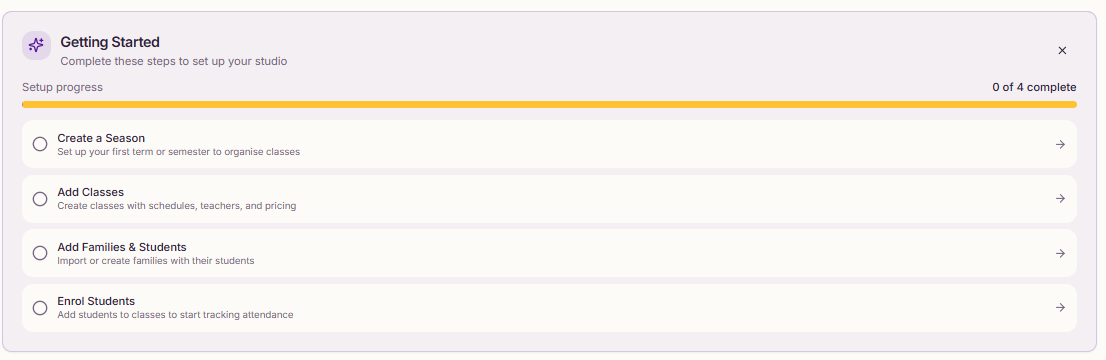
Use this guide to complete the initial setup of your studio in My Studio Manager. Following these steps will help you get your studio ready to manage classes, students, and attendance efficiently.
Setup Progress Widget
The Setup Progress widget lets you track your setup status and see how far along you are in completing your studio setup.
Create a Season- Set up your first term or semester to organise your classes and schedules.
Add Classes -Create classes by adding schedules, teachers, and pricing details.
Add Families & Students - Import or create family profiles and add their students to the system
Enrol Students Enrol- students into classes to begin tracking attendance and managing enrolments
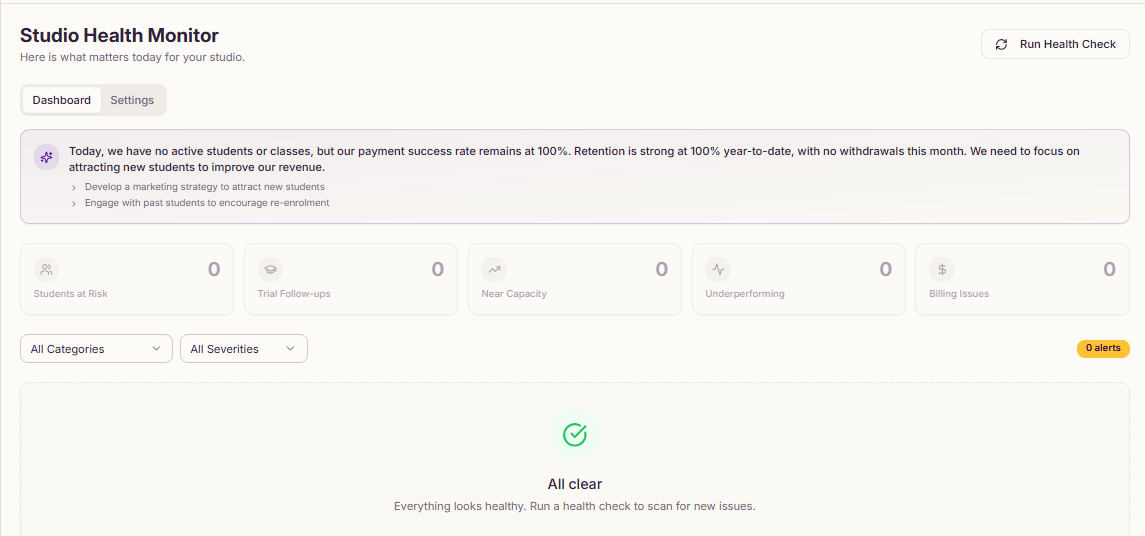
The Studio Health Monitor helps you keep track of critical studio metrics and identify areas that may need attention. It provides a quick view of what matters most for your studio and includes two main pages:
Dashboard Pages
Students at Risk – Identify students who may be at risk of dropping out.
Trial Follow-ups – Monitor follow-up actions for trial students.
Near Capacity – See classes approaching full capacity.
Underperforming – Identify classes that are not meeting minimum enrolment targets.
Billing Issues – Track outstanding or failed payments.
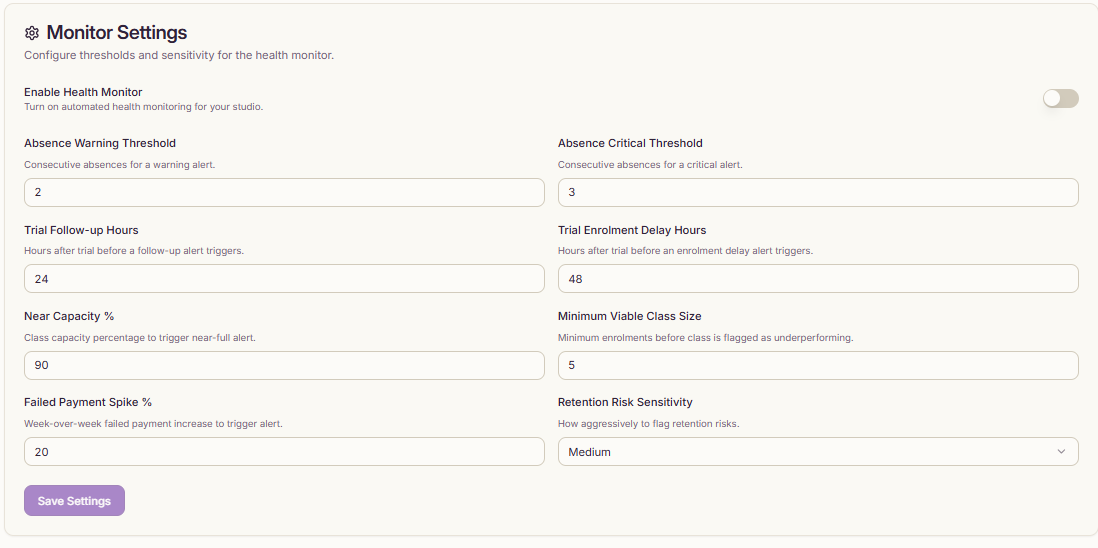
Monitor Settings
You can configure thresholds and sensitivity for alerts in the Health Monitor to suit your studio’s needs:
Absence Warning Threshold – Number of consecutive absences to trigger a warning alert.
Absence Critical Threshold – Number of consecutive absences to trigger a critical alert.
Trial Follow-up Hours – Hours after a trial class before a follow-up alert is triggered.
Trial Enrolment Delay Hours – Hours after a trial class before an enrolment delay alert triggers.
Near Capacity % – Class capacity percentage that triggers a near-full alert.
Minimum Viable Class Size – Minimum enrolments required before a class is flagged as underperforming.
Failed Payment Spike – Week-over-week increase in failed payments that triggers an alert.
Retention Risk Sensitivity – Adjust how aggressively the system flags students at risk of leaving.
The Studio Health Monitor Widget provides actionable insights so you can proactively manage attendance, enrolments, and class performance, keeping your studio running smoothly.
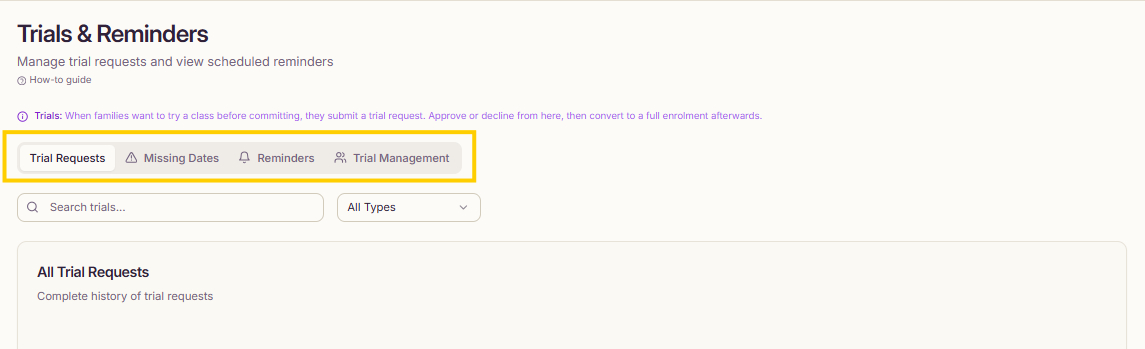
The Recent Trial Requests section helps you manage and track trial class requests from parents, ensuring no trial student is missed.
Sections Overview
All Trial Requests View the complete history of all trial requests submitted to your studio.
Trials Without Dates Shows trials without a scheduled date. Reminders won’t be sent until a date is set. Set a date to enable automatic reminders.
All Reminders Access the history of all trial reminders. Reminders are automatically scheduled once trials are approved.
Trial Students View and manage trial student attendance, feedback, and outcomes to track progress and follow-ups effectively.
This section ensures that all trial requests are organized, scheduled, and tracked for smooth trial management.
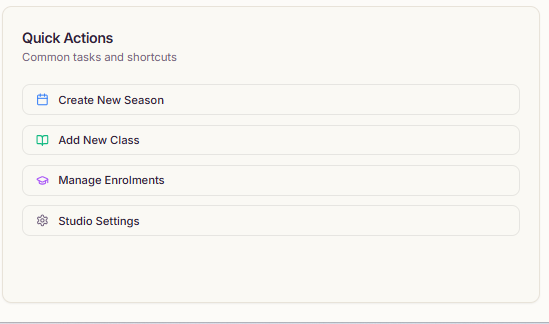
The Quick Actions section provides shortcuts to the most commonly used tasks in My Studio Manager, helping you save time and navigate the platform efficiently.
Create New Season – Quickly set up a new term or semester for your classes.
Add New Class – Create a new class with schedules, teachers, and pricing.
Manage Enrolments – Access enrolment management to add or update student enrolments.
Studio Settings – Navigate directly to your studio settings to update preferences, themes, and other configurations.
These shortcuts allow you to perform essential tasks in just a few clicks, keeping your studio management streamlined.
mystudiomanager.March2026
