Private lessons are one-on-one sessions between a teacher and student, separate from regular group classes. They have their own pricing, scheduling, and booking system. Parents can browse available time slots and request bookings for their children.
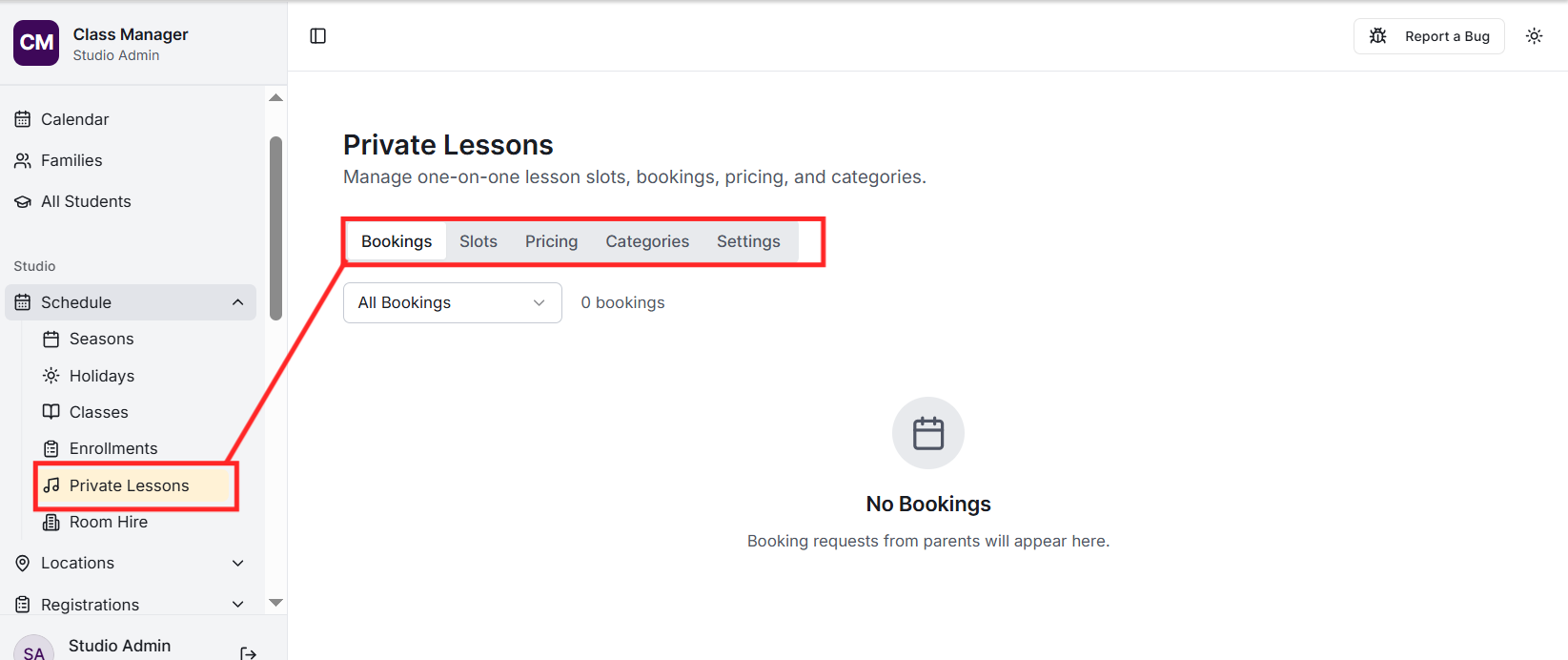
Go to Private Lessons in the sidebar. Start by creating Categories (e.g., Piano, Voice, Guitar), then set up Pricing for different durations. Next, create available Slots - specific dates and times when teachers can take private lessons. Finally, configure Settings like booking lead time and cancellation policies.
How does private lesson pricing work?
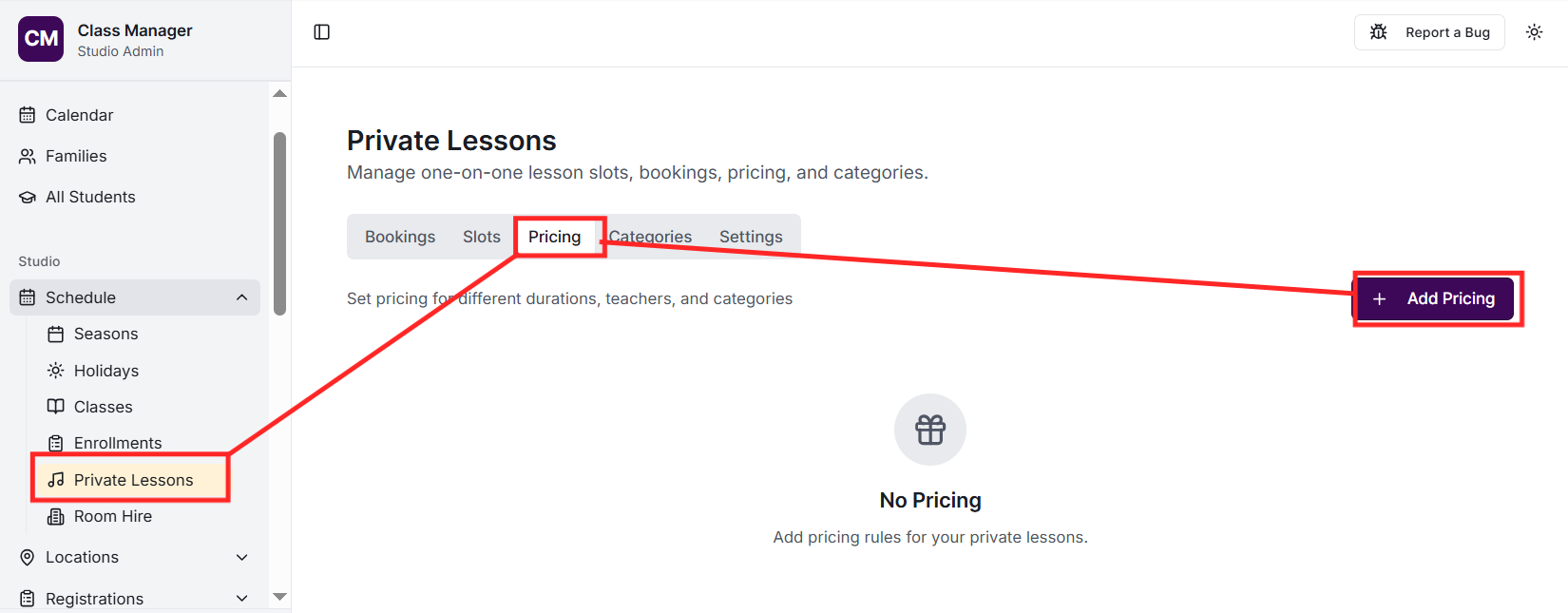
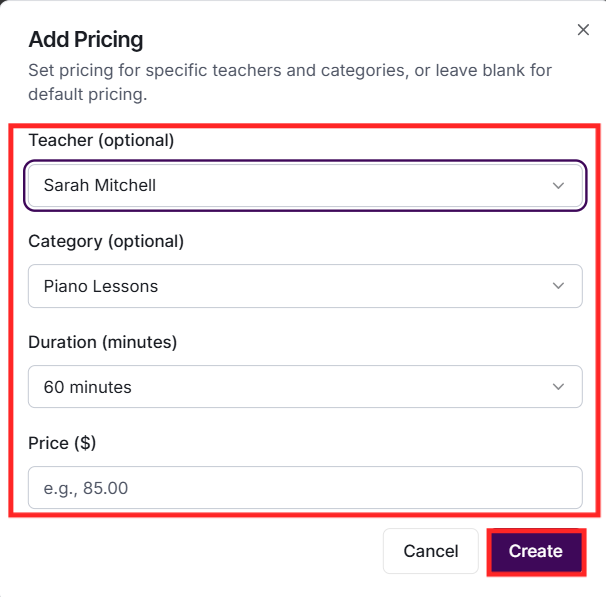
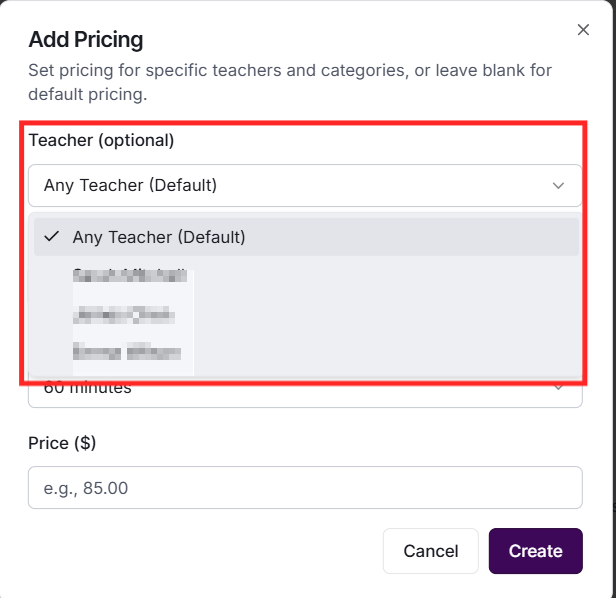
Pricing is flexible and hierarchical. You can set a default price per duration (e.g., 30 min, 45 min, 60 min), then override prices for specific teachers or categories. The system automatically finds the best matching price: teacher+category specific, then teacher-only, then category-only, then default.
How do I create available time slots?
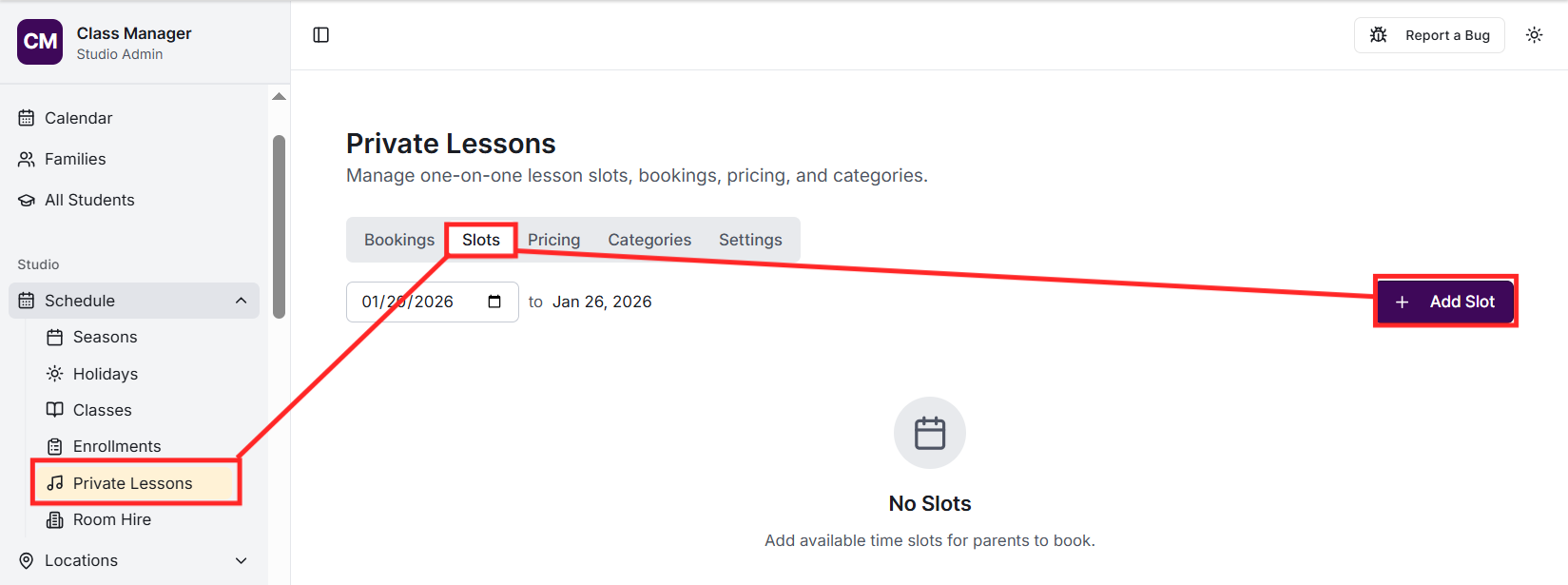
Go to Private Lessons > Slots and click 'Add Slot'. Select the teacher, date, start time, end time, and duration. You can optionally limit the slot to a specific category. Available slots appear to parents for booking.
Parents browse available slots in their portal's Private Lessons section. They see slots filtered by their children's age (if you've set age restrictions on categories). They select a slot, choose which child is taking the lesson, and submit a booking request.
What is the booking lifecycle?
Bookings go through states: Requested (parent submitted), Confirmed (admin approved), and then either Completed (lesson happened), Cancelled (cancelled before lesson), or No Show (student didn't attend). Admins manage bookings from the Bookings tab.
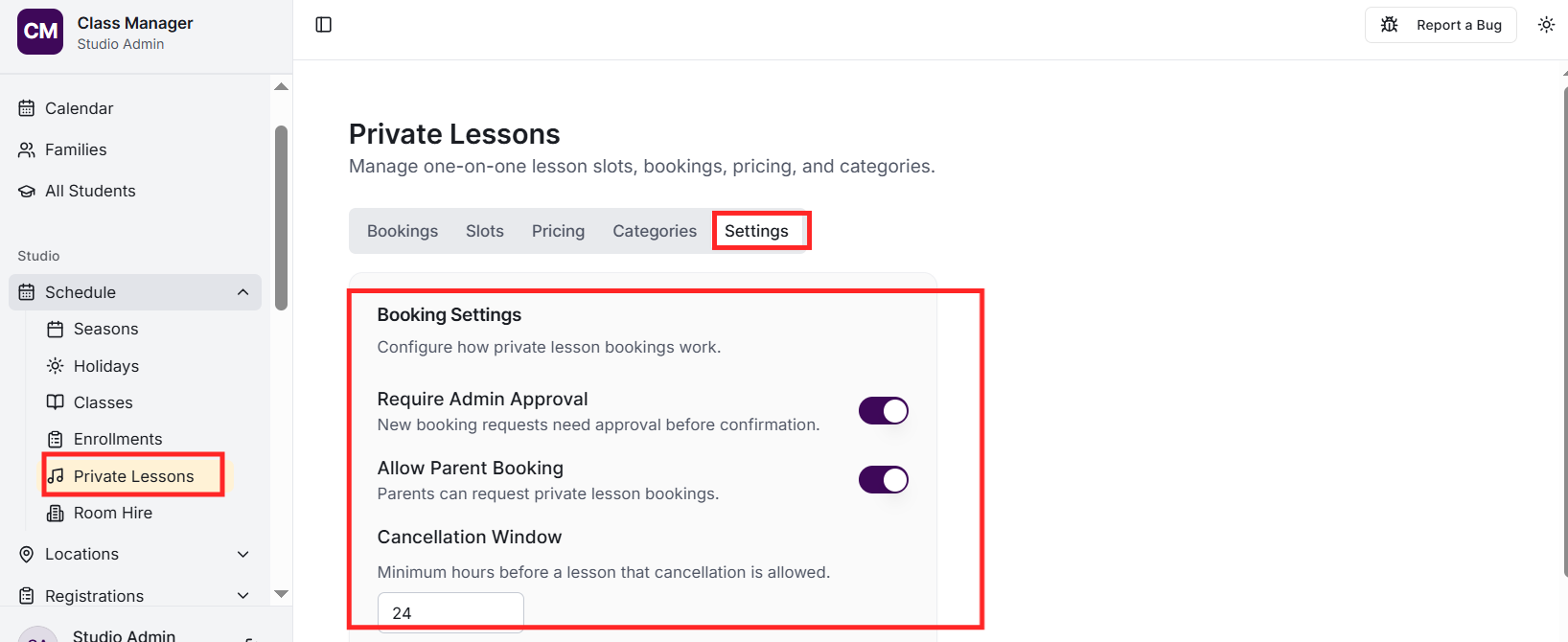
Go to Private Lessons > Settings to configure: whether private lessons are enabled, minimum booking lead time (hours before lesson), and cancellation window (hours before lesson when parents can cancel). These settings apply studio-wide.
Yes! When creating pricing, you can optionally select a specific teacher. This allows you to charge different rates for senior vs junior teachers, or for specialists. Teacher-specific pricing takes priority over default pricing.
When a private lesson booking is confirmed (either by admin approval or auto-confirmation if enabled), a charge is automatically created on the family's account. The charge amount is calculated based on your pricing rules - checking for teacher+category specific pricing first, then falling back through the hierarchy. This ensures accurate billing without manual charge creation.
In Settings, you can enable auto-confirmation so bookings are immediately confirmed without admin approval. The cancellation window (in hours) determines how late parents can cancel - after this time, cancelled bookings may still be charged. No-show fees can also be configured for students who miss their lessons without cancelling.
