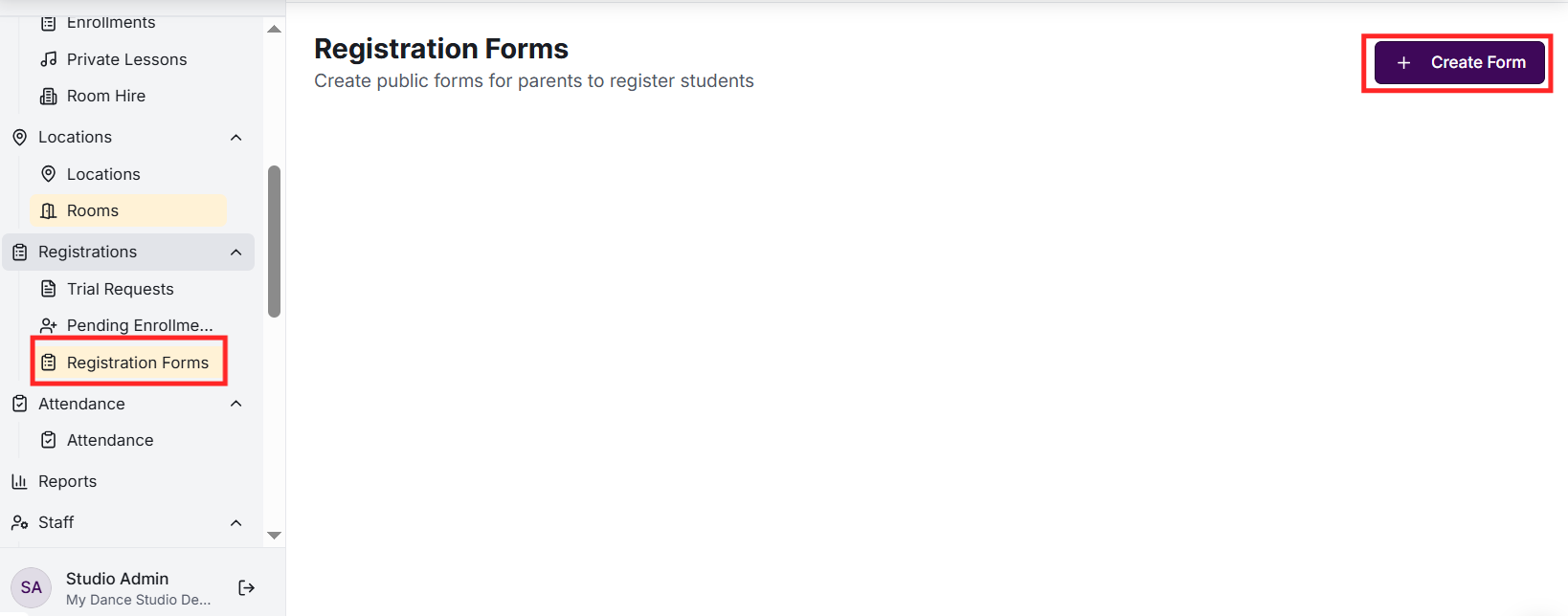
Go to Registration Forms and click 'Create Form'. Give it a name and unique slug (URL path). Customise which fields to show and whether to include class selection. The form gets a public URL you can share.
How does age filtering work?
When parents enter their child's date of birth during registration, only age-appropriate classes are shown. This is based on the min/max age settings you configured for each class, ensuring families only see relevant options.
Yes! During registration, parents create a password. After submitting, they can immediately log in to the parent portal to view their children's timetables, attendance, billing, and manage their account.
Yes, the registration form supports adding multiple students in a single submission. All students are linked to the same family and parent account. Sibling discounts (if configured) apply automatically.
Yes, photo upload is available during registration and can also be done later through the parent portal. Photos help teachers identify students and are shown in attendance marking.
Each form has a unique public URL. Copy this URL and share it on your website, social media, or in marketing emails. Parents don't need a PIN to access the public registration form - they create their account during registration.
