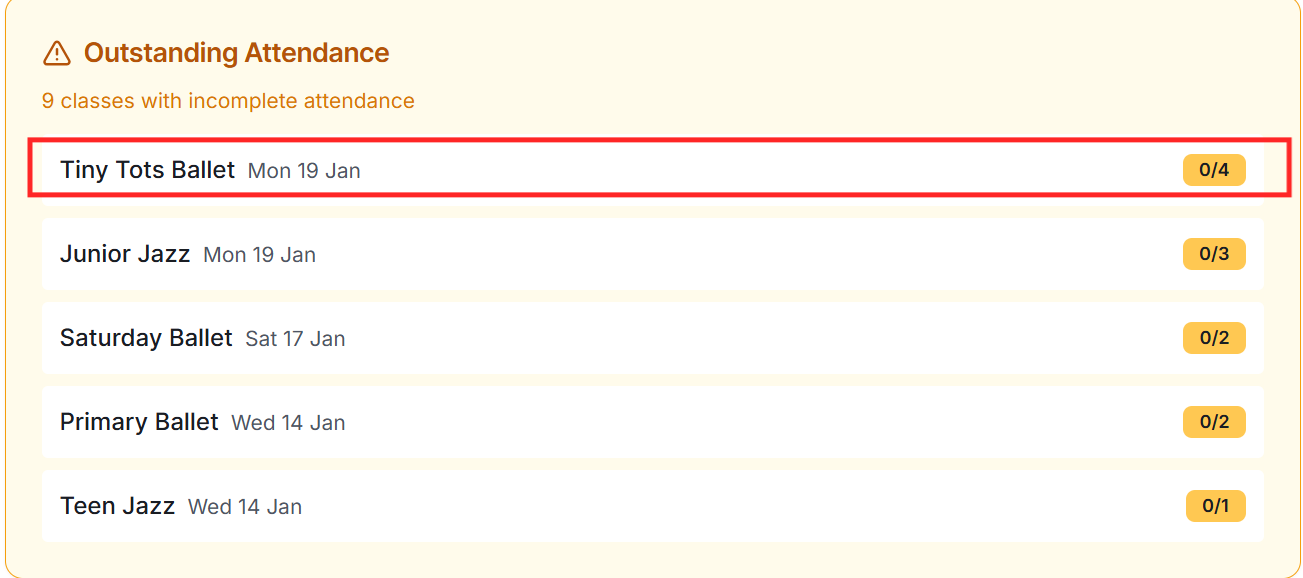
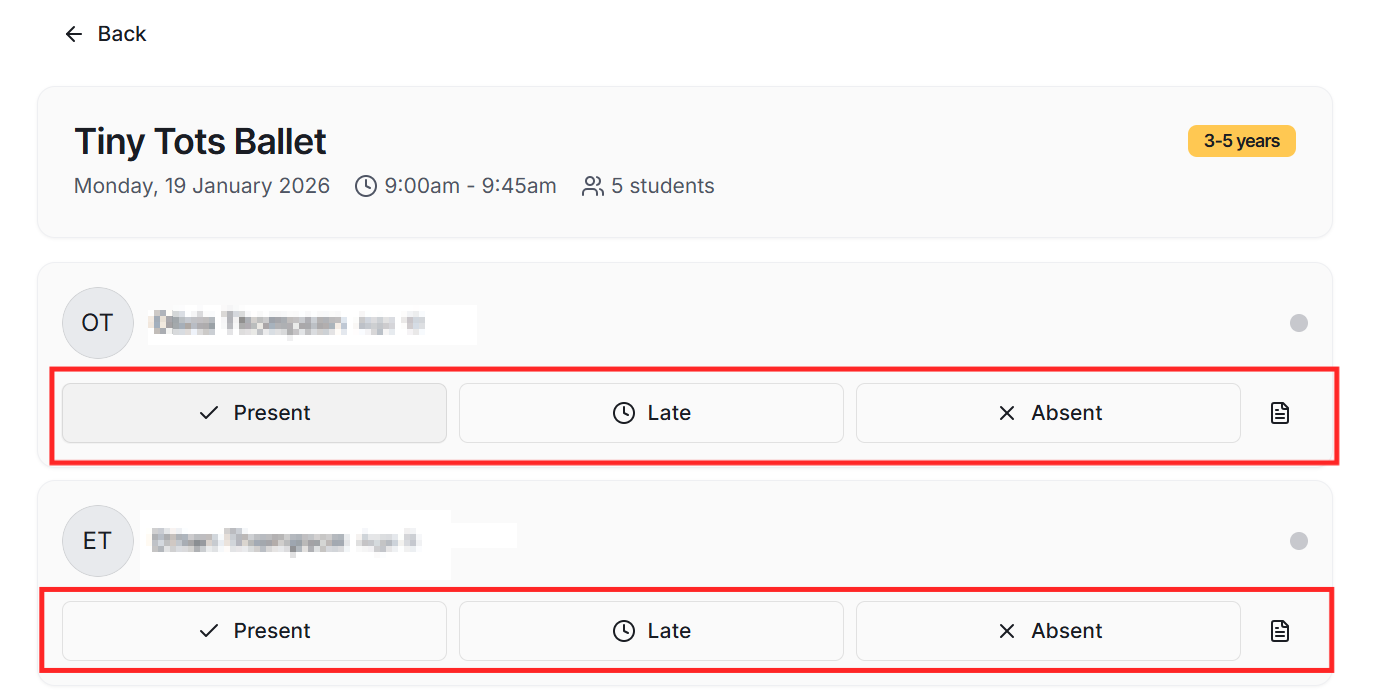
Teachers access the teacher portal using their studio's teacher PIN, then log in with their credentials. They see today's classes and can tap each class to open the roll. For each student, they tap to mark as Present (green), Late (yellow), Absent (red), or Excused (blue). Changes save automatically.
What attendance statuses are available?
Four statuses: Present (attended on time), Late (attended but arrived late), Absent (did not attend, unexcused), and Excused (did not attend but with valid reason). These statuses are used in attendance reports and can trigger make-up credit eligibility if enabled.
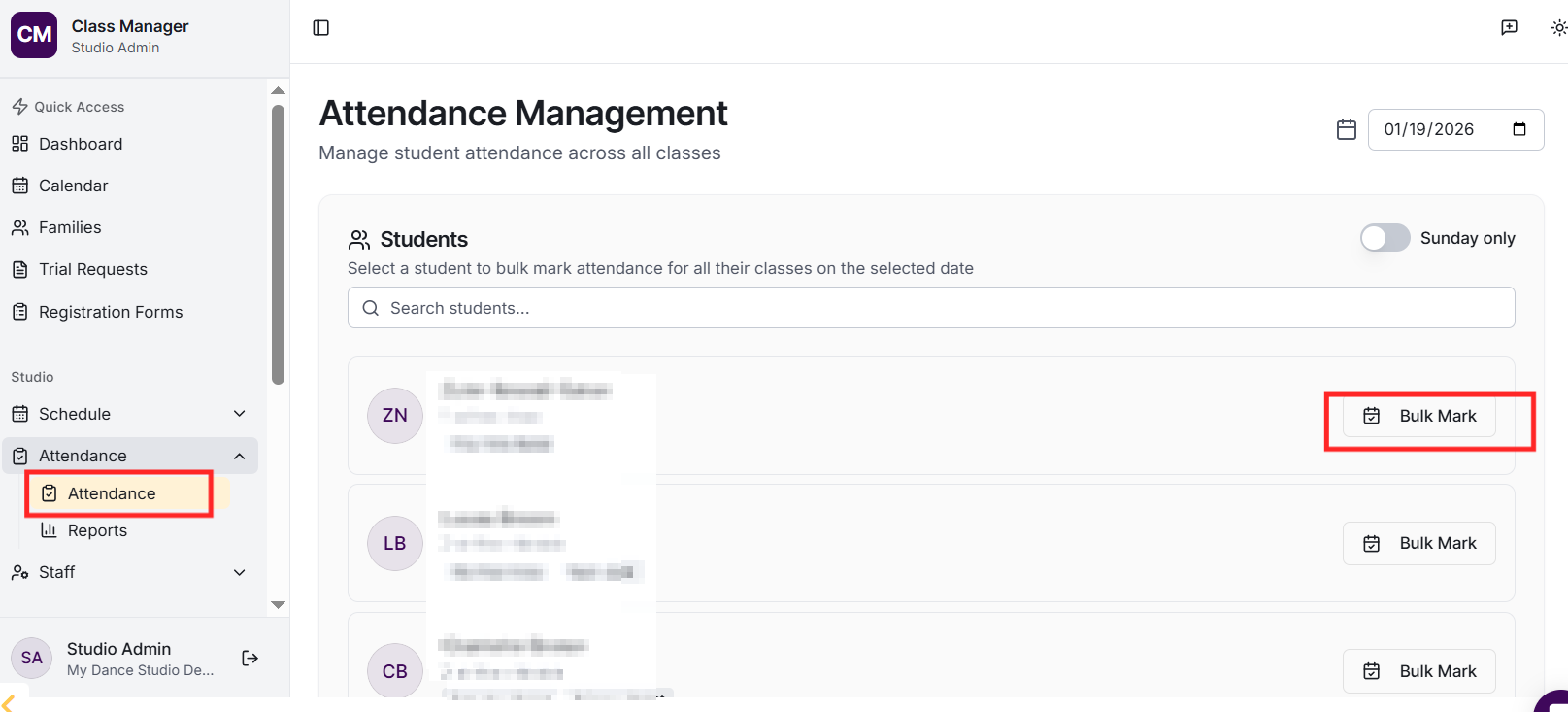
Yes! In the admin portal, go to Attendance, select a date, and choose a student. You can then mark all their classes for that day with a single action - perfect for students who were absent the entire day due to illness or holiday.
How do I view attendance history?
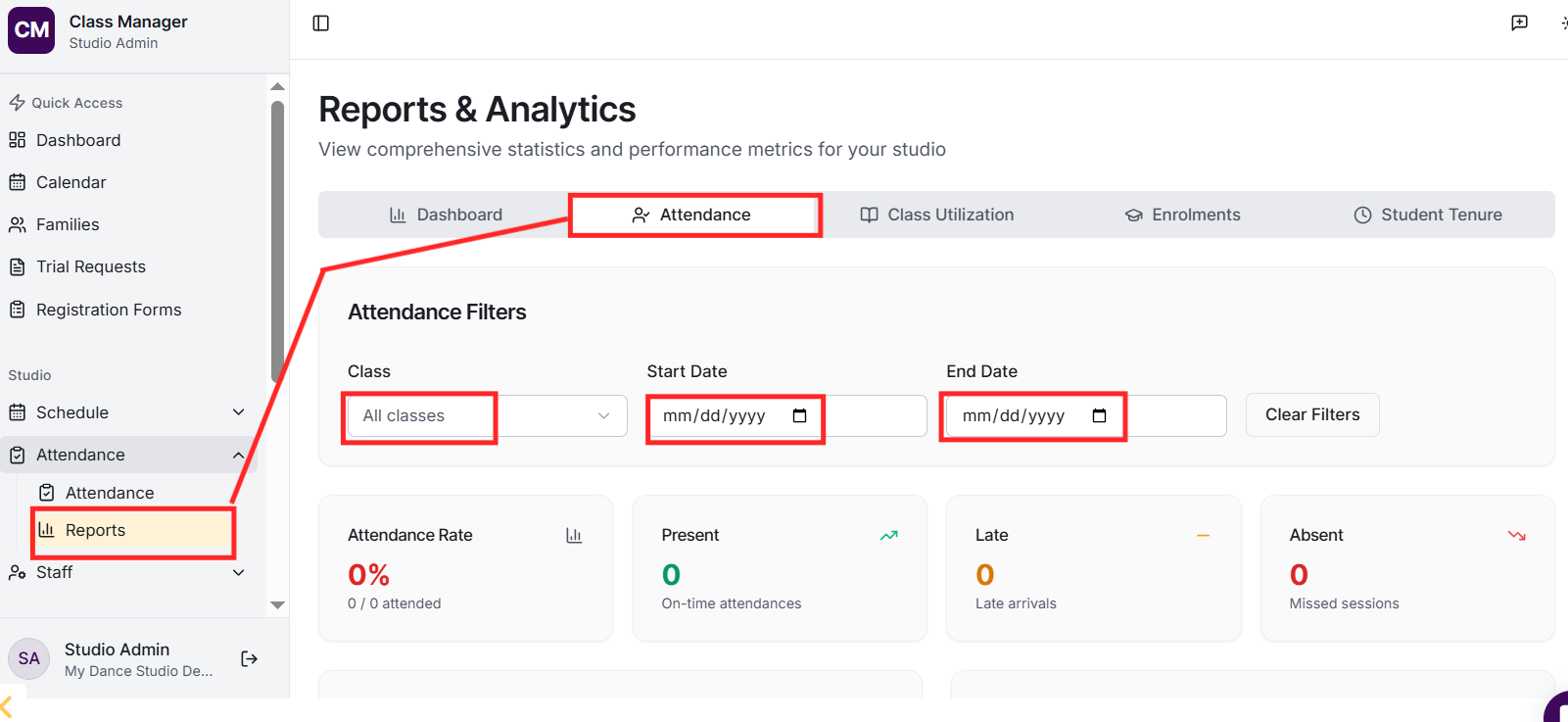
Go to Reports and select the Attendance tab. You can filter by class and date range to see detailed attendance breakdowns. The report shows attendance by class (present/late/absent percentages) and by student (individual attendance rates). Export options are available.
What happens if attendance is marked incorrectly?
Teachers can update attendance for recent sessions. Admins can edit any attendance record. The system logs changes for accountability. If you need to correct older records, admins receive notifications when teachers attempt to modify historical attendance.
Yes! In the teacher portal, teachers can expand each student to see important information including medical notes, emergency contacts, admin notes, and the student's photo (if uploaded). This helps teachers be aware of any special requirements.

