Your studio can now connect Google Lead Ads directly to My Studio Manager, so new enquiries flow into your system as soon as someone submits a form.
When a lead comes in from Google Ads, it’s automatically added as a contact in MSM. From there, your existing workflows can handle follow-ups, tagging, or task assignment without manual work.
You can connect one or multiple Google Ads accounts and view all active lead forms in one place. Each time a form is submitted, the enquiry is captured instantly and treated like any other studio enquiry.
This helps your studio respond faster, stay organised, and avoid missed leads during busy enrolment or promotion periods.
Step 1
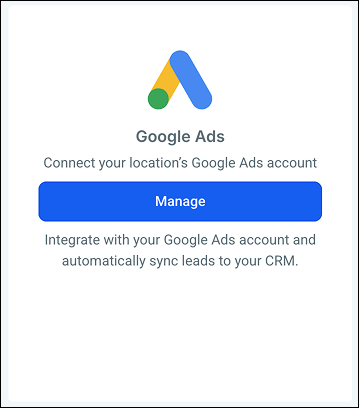
Navigate to Sub-account → Settings → Integrations and search for Google Ads.
Step 2
Click Manage to open the marketplace view.
Step 3
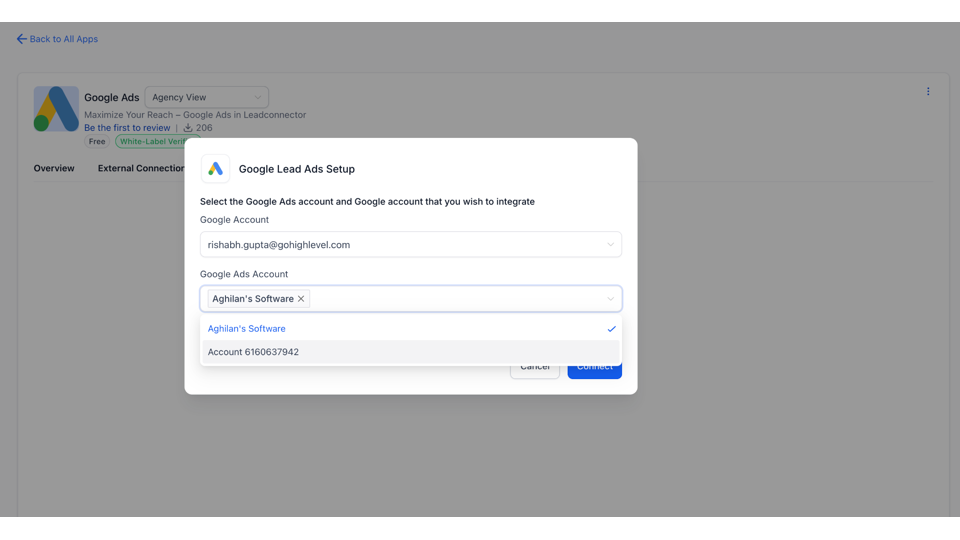
Install the integration and connect the Google account linked to your Google Ads.
Step 4
Select the ad account you want to use.
Step 5
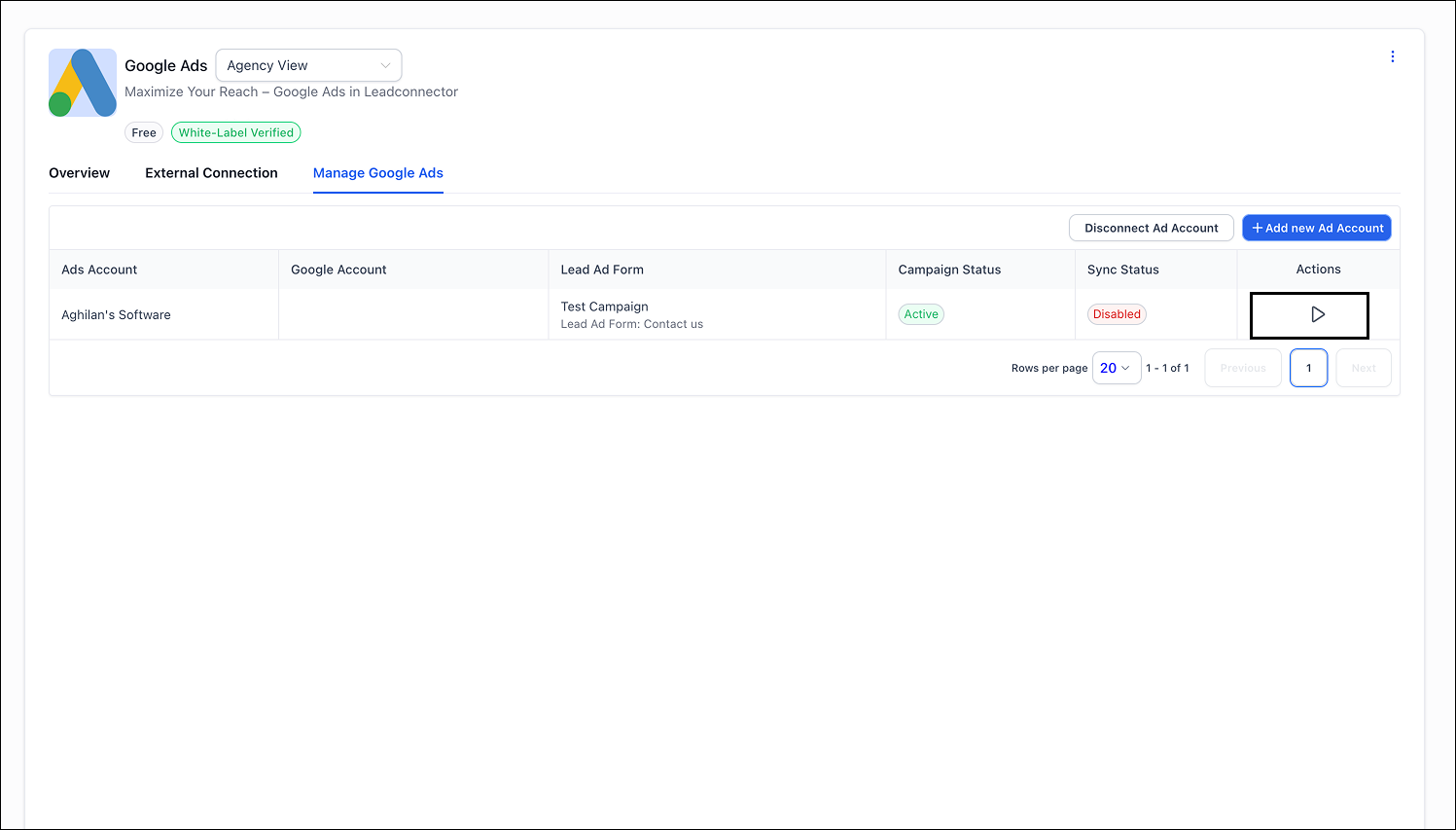
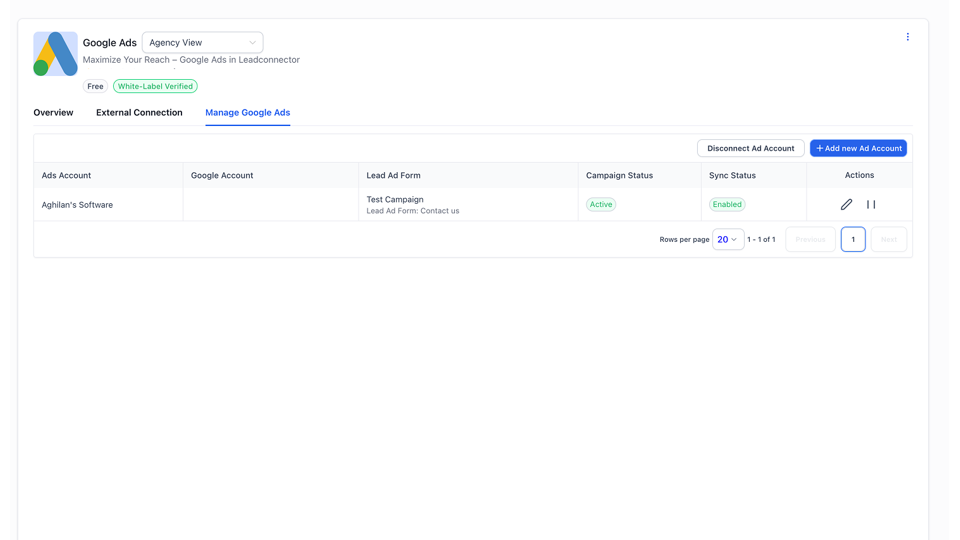
Once connected, you’ll see all campaigns and lead forms linked to that account.
Step 6
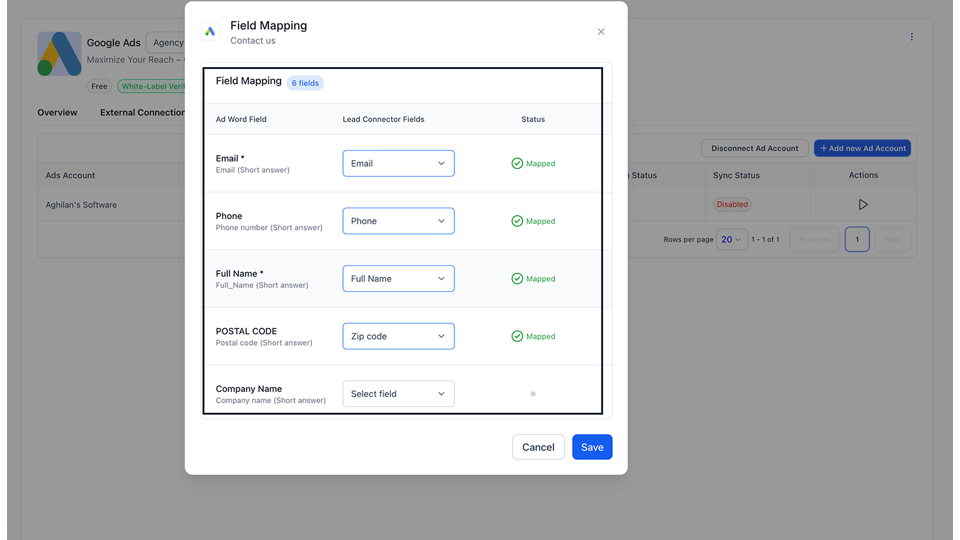
Enable campaign syncing and map the lead form fields to your contacts.
Step 7
After mapping, the connection becomes active and new enquiries will start flowing automatically into My Studio Manager.
Step 8
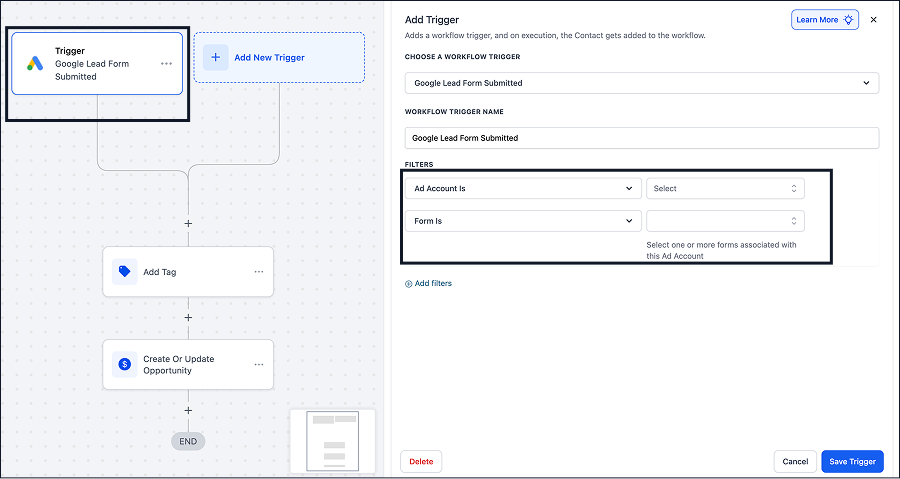
Set up automations using the Google Lead Form Submitted trigger to follow up with new enquiries.
Highly requested by studios
This integration was built in response to strong studio demand.
All leads in one place
Google enquiries sit alongside your other studio leads, making follow-up simpler and more consistent.
Faster responses, less admin
Automations help your studio respond quickly without relying on manual checks.
