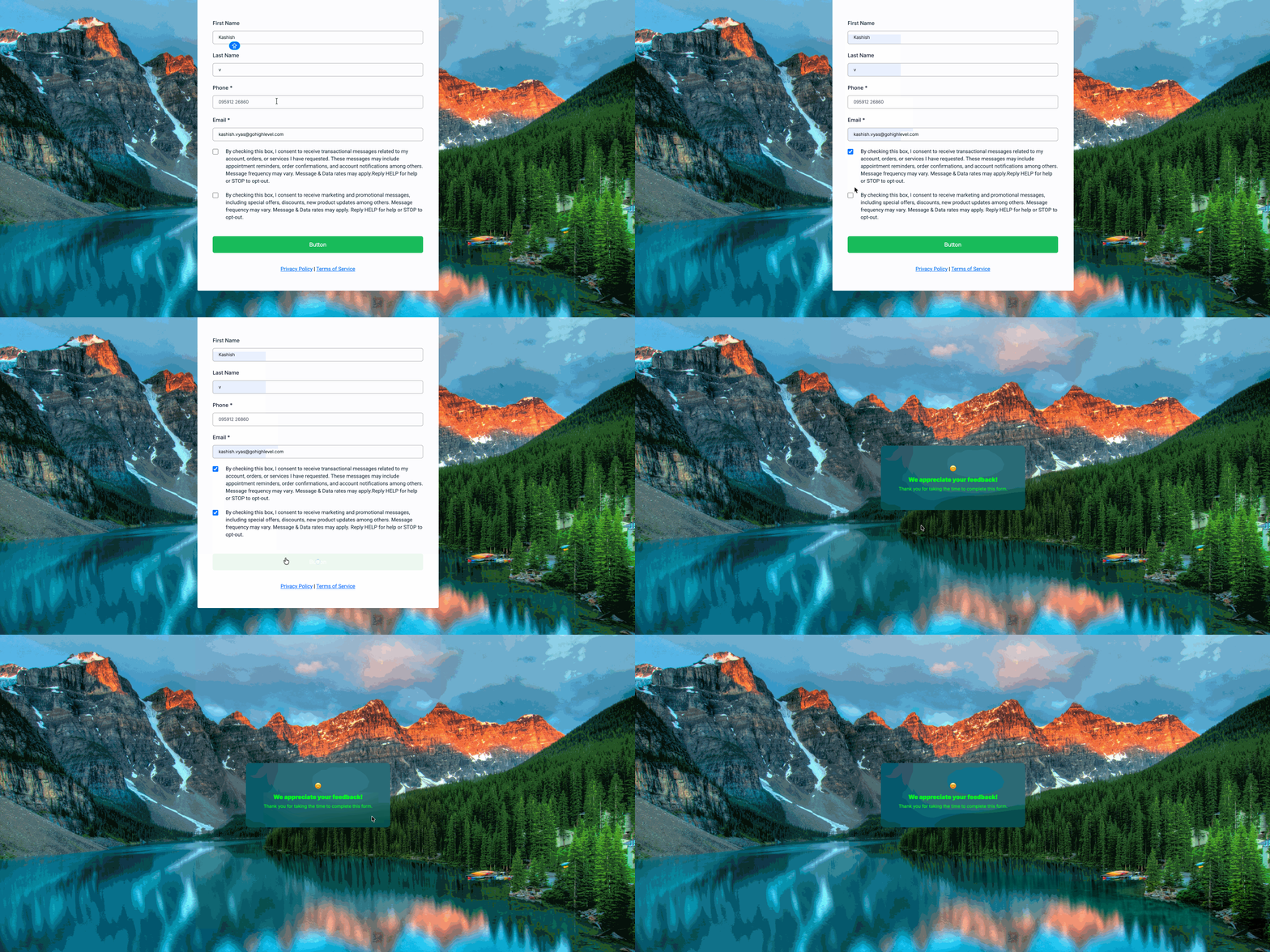
The message shown after a form, survey, or quiz is submitted has been upgraded in MSM, giving your studio more control over how confirmations look and feel for parents and students.
You can now design clearer, more polished submit messages that work properly on both desktop and mobile, helping enquiries and bookings feel complete and professional.
 What you can now do
Write clearer confirmation messages
Create submit messages with simple formatting like headings and supporting text so it’s easy to understand what happens next after submitting a form.
Design separately for desktop and mobile
Adjust how submit messages appear on mobile without affecting desktop layouts. This keeps messages readable on phones, where most enquiries happen.
Preview before publishing
See exactly how your submit message will look before it goes live, reducing mistakes and back-and-forth edits.
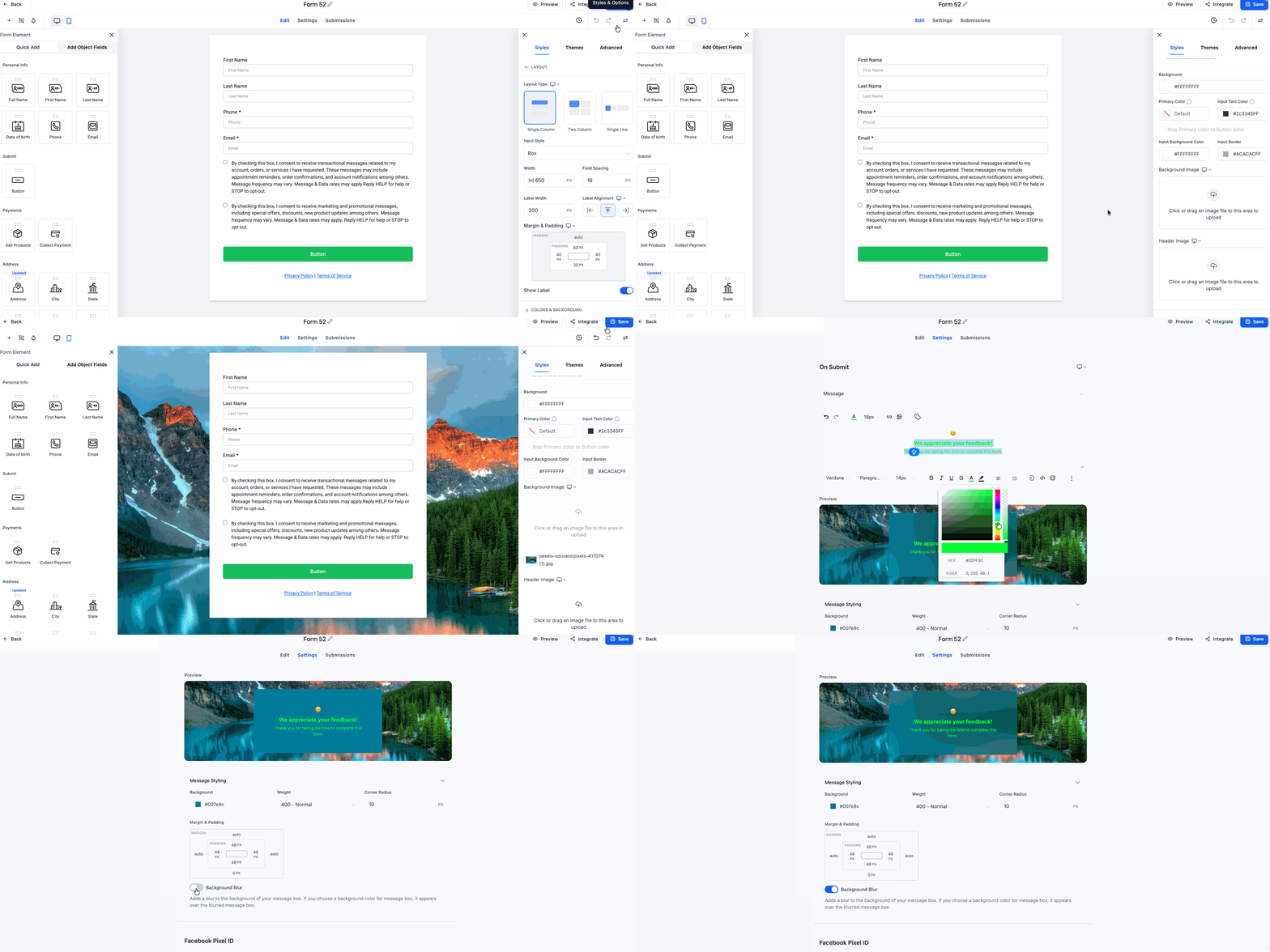
Keep text readable on image backgrounds
Use an optional background blur or solid background to make sure text stays clear when forms use images.
 Where to find it
Open any Form, Survey, or Quiz
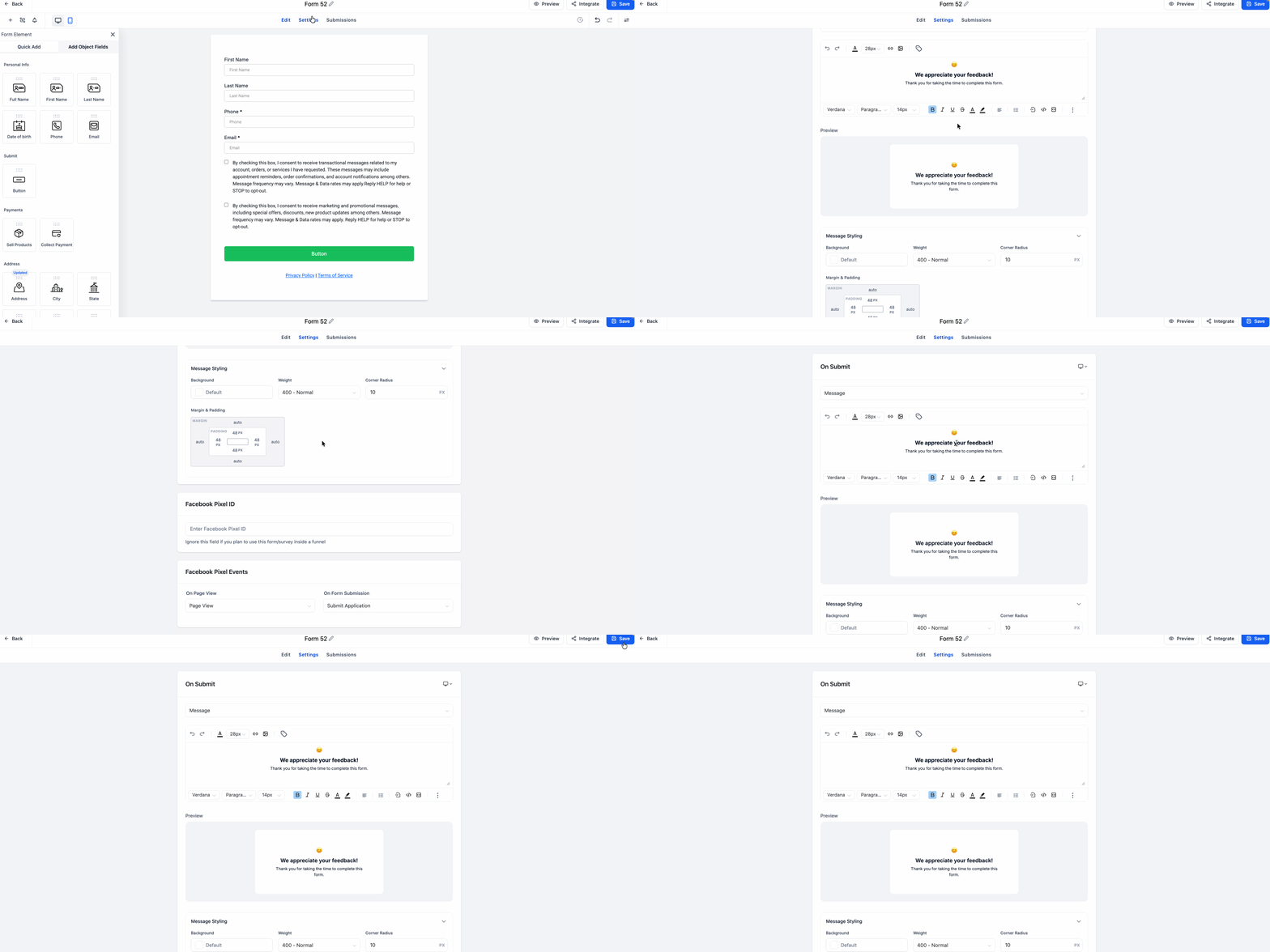
Go to On Submit → Message Styling
Edit and preview your submit message for desktop and mobile
Save when ready
 Why this matters for your studio
Clear submit messages reduce confusion, set expectations, and reassure people that their enquiry or booking went through successfully. This means fewer follow-up questions, smoother communication, and a better first impression for your studio.