Note: This module is currently in development and may change at any time. We will endevour to keep this guide up to date as changes occur.
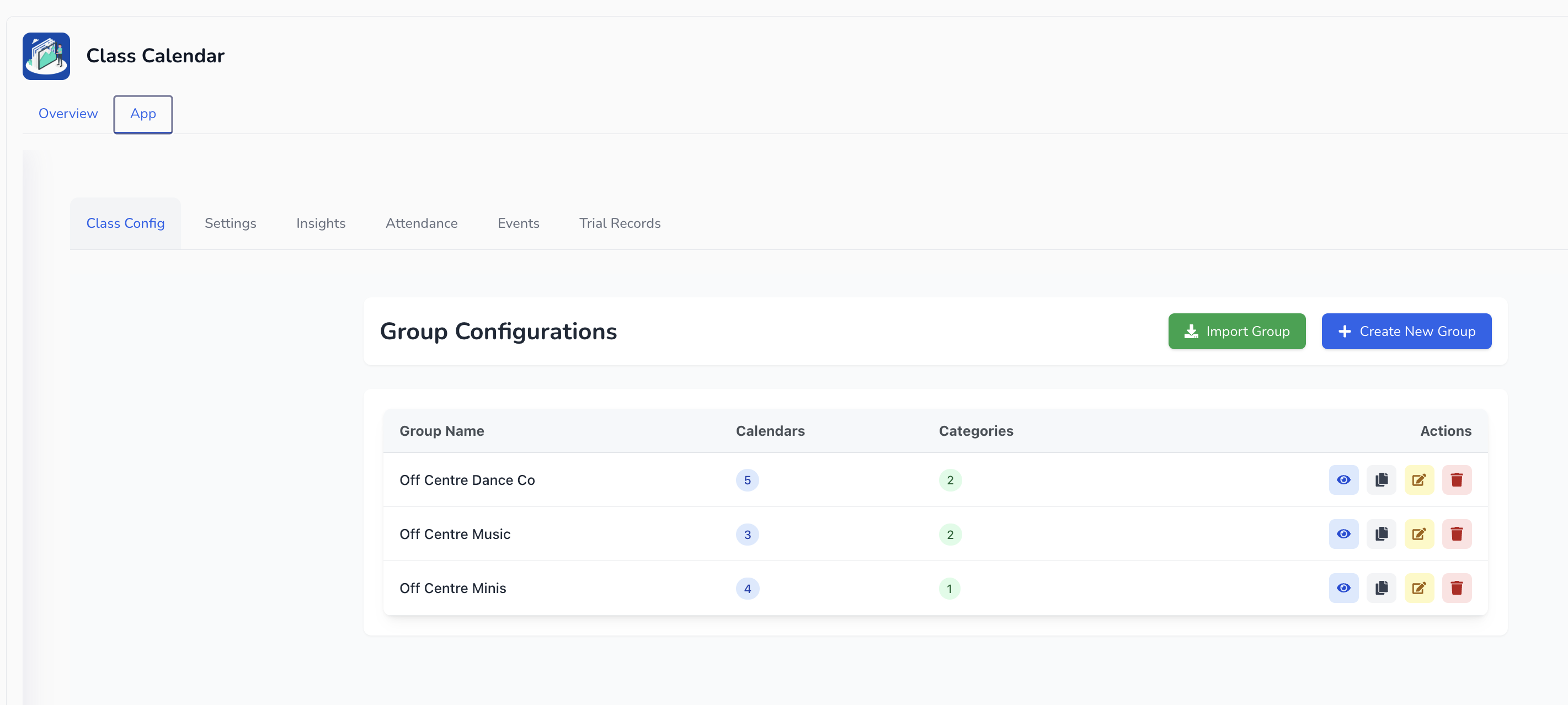
The Class Config tab is where you create and manage your classes.
From here you can:
Create Groups, Categories, and Calendars
Set up class schedules, teachers, locations, and enrolment limits
Edit existing classes or duplicate them for new terms
Manage trial settings, pricing, and booking rules
This is your main hub for class setup and structure.
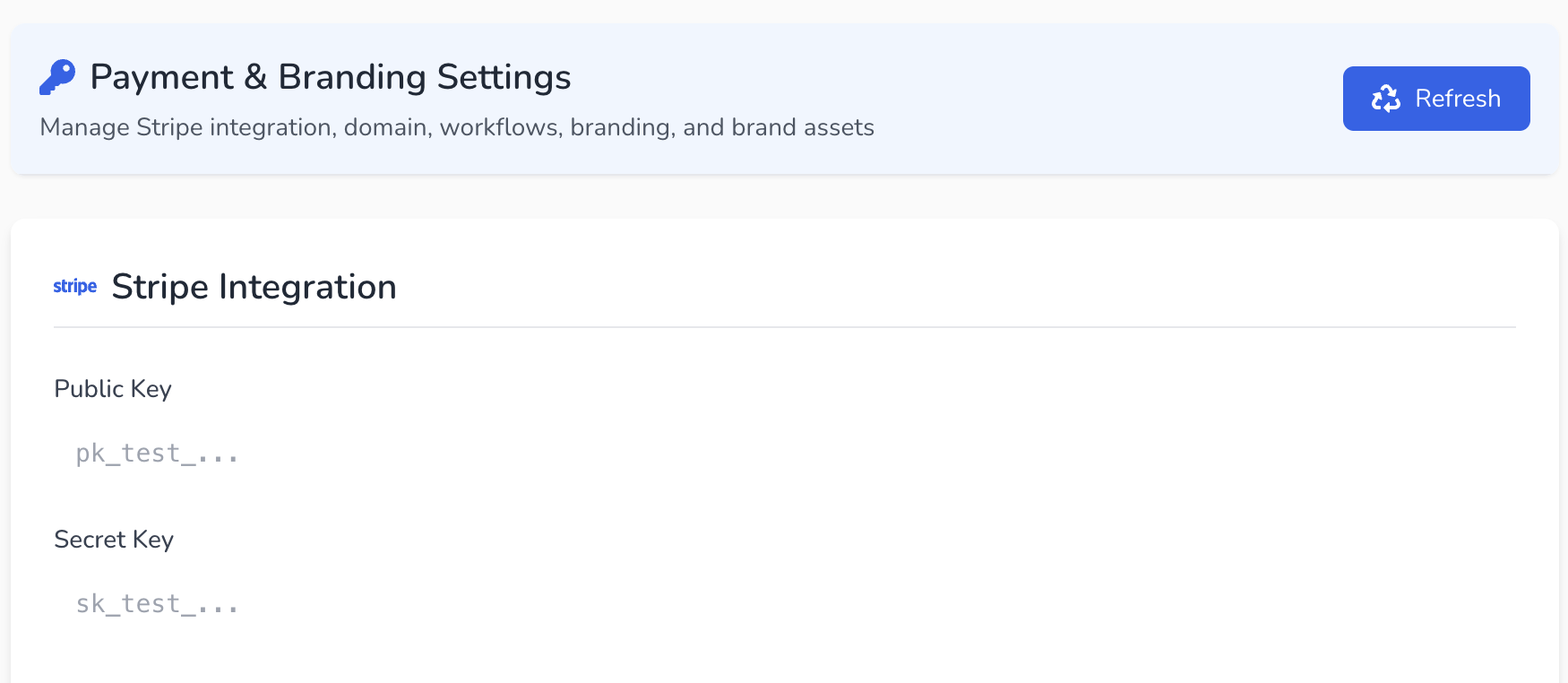
The Settings tab controls the payment and branding settings for the module.
Connect Payments via Stripe
Add your Stripe Public Key and Stripe Secret Key from your Stripe account.
Coming Soon - Wordpay Integration for Australian and NZ studios will replace stripe as the payment processor for this module.
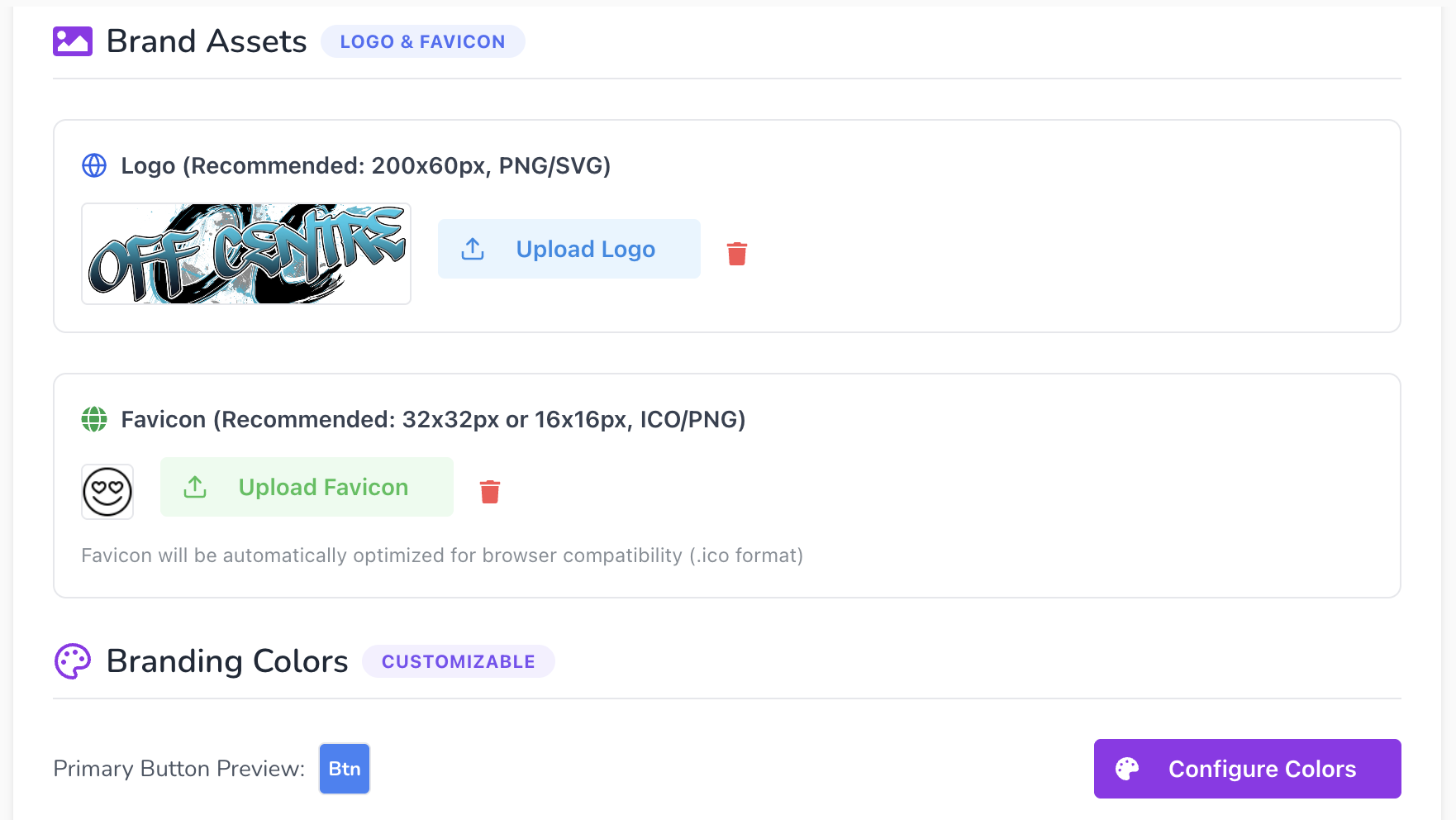
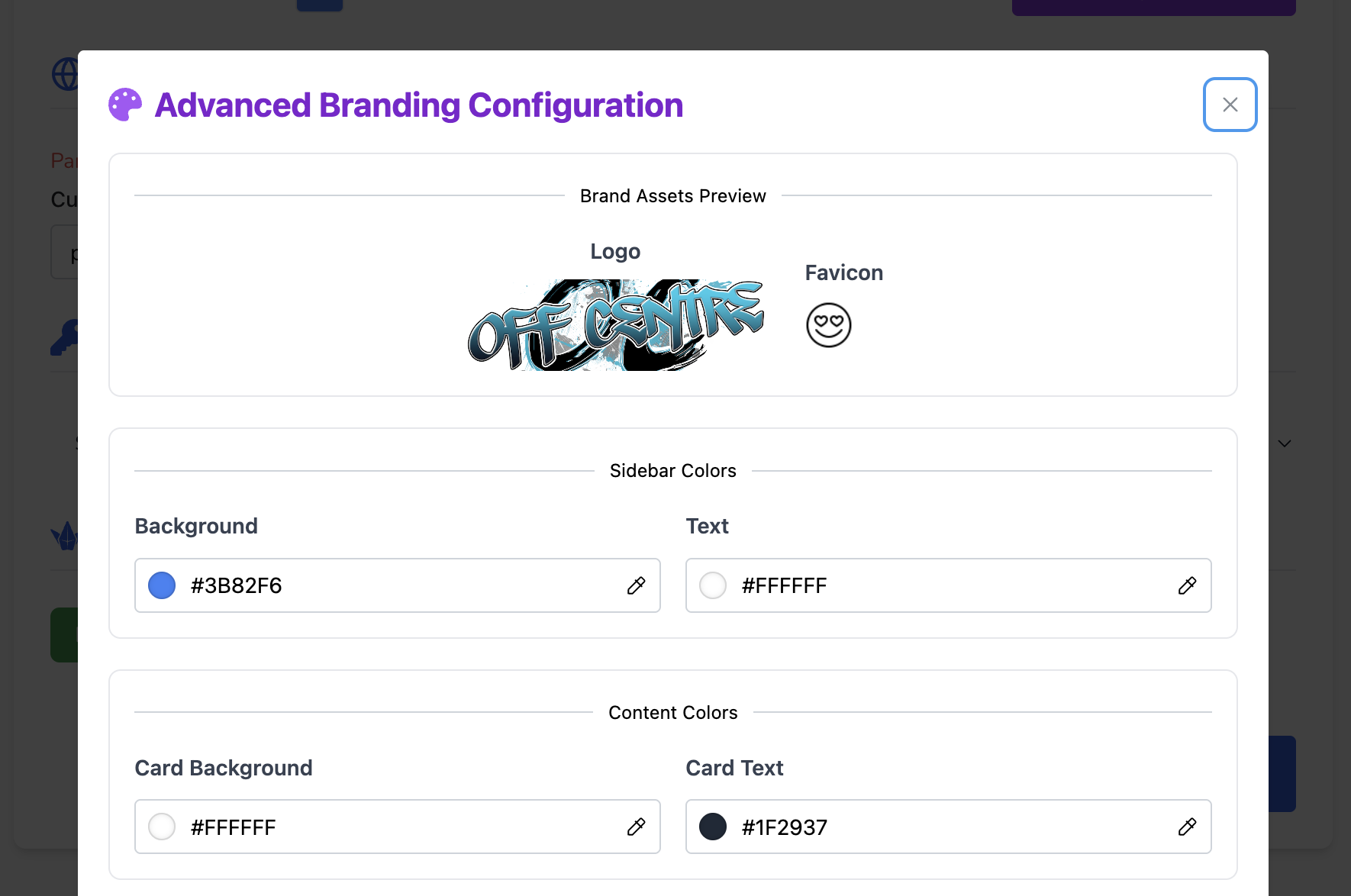
Brand Assets
Add your studio logo to display on the Parent Portal Pages and Login Screens
Add your favicon to display on the page when it is added to customer bookmarks.
Branding Colours
Set the colours for your parent portal here.
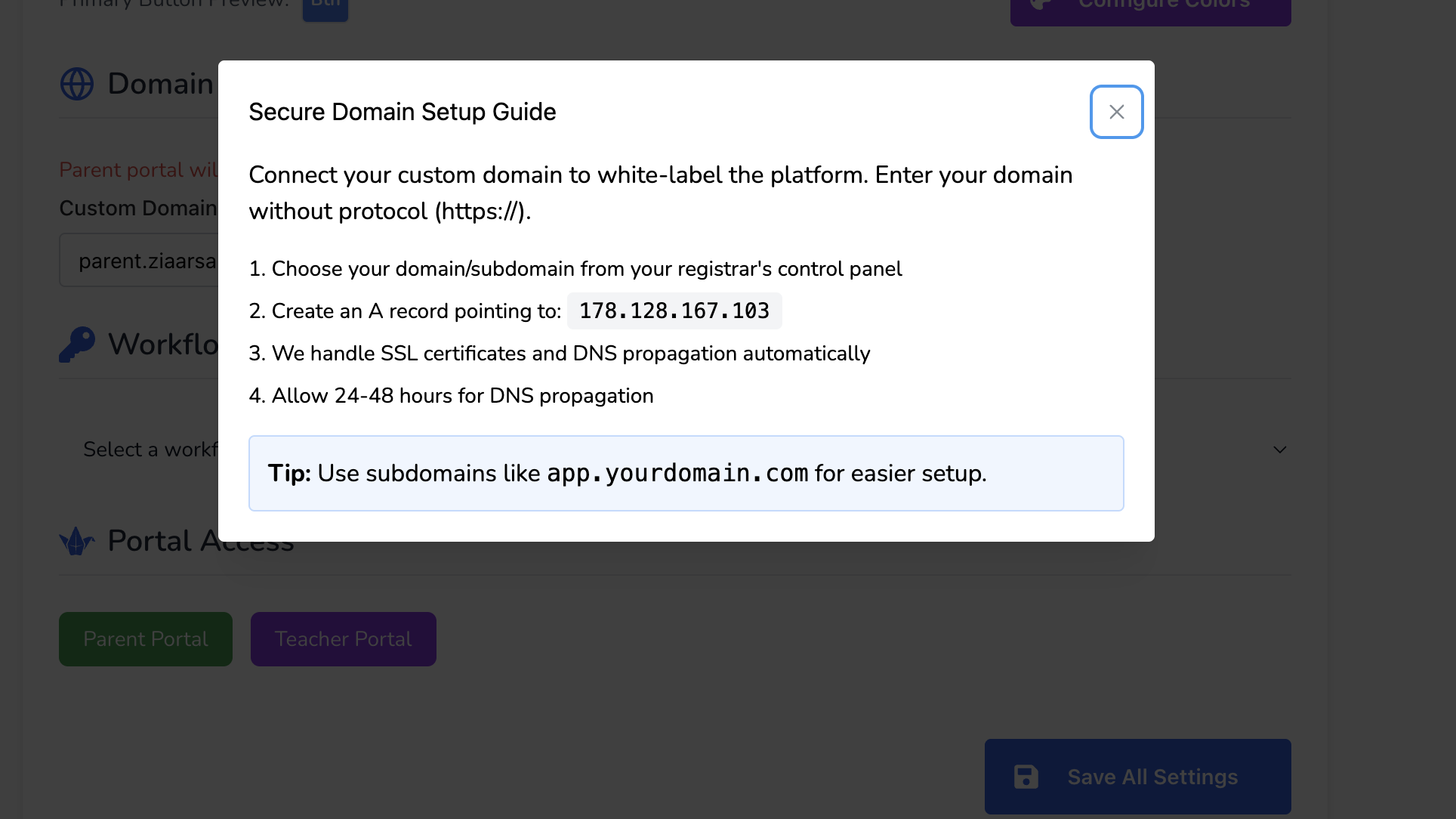
Domain Setup
This sets your parent portal link to your business website address. You will need to access your DNS settings to configure this. If you do not configure this section your parent portal will have a default address from my studio manager. We suggest creating something like members.yourstudiowebsite.com.au for this. If you need assistance with this please reach out to us at [email protected] with your username and password to your domain login and we can set this up for you.
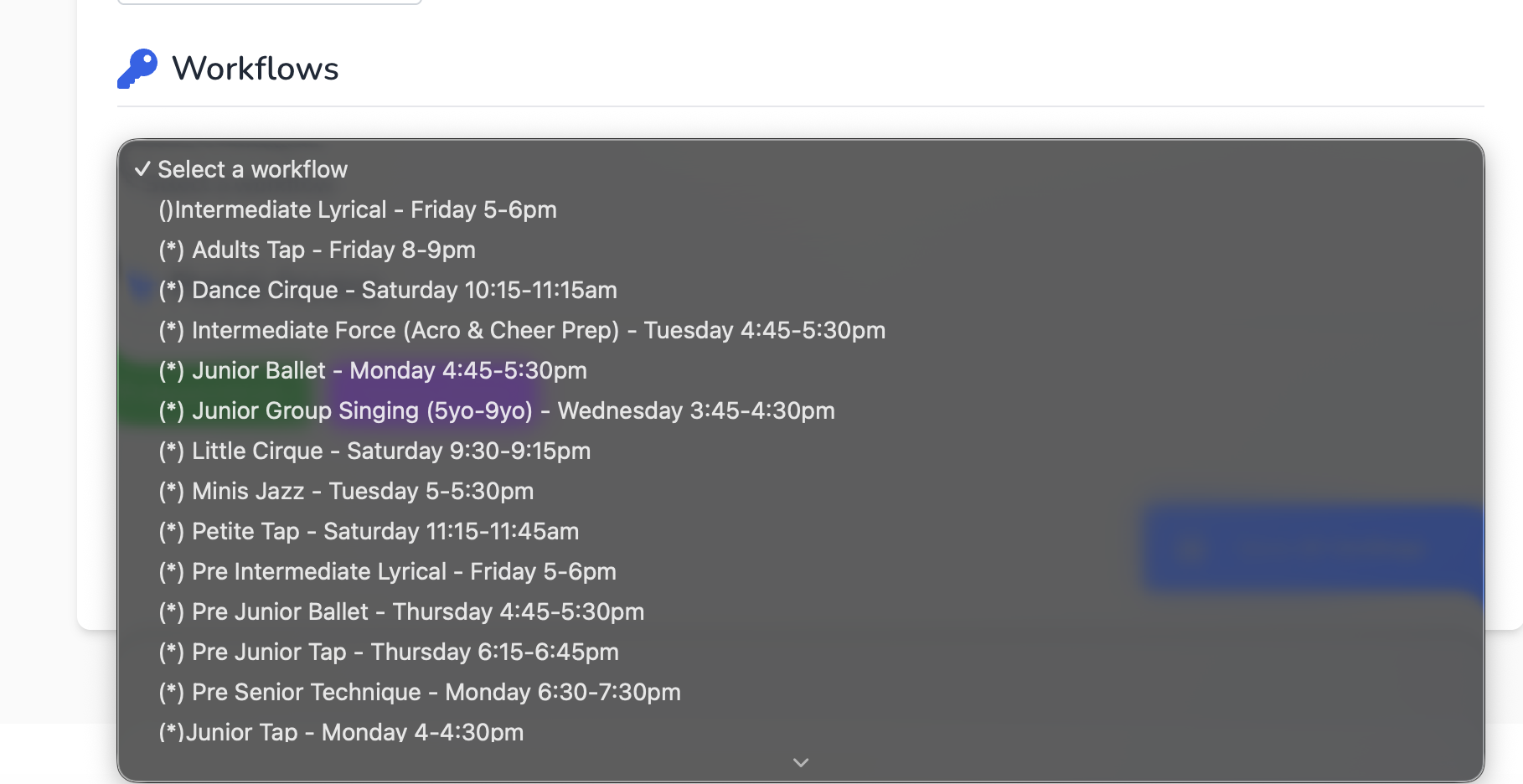
Link a Workflow
Connect an existing workflow to trigger automations when a student books into a class. You can always set this later.
Portal Access
Parent Portal - This is a direct link to your parent portal login, you can share this link with your customers or add a button on your website. If you have set up the domain above you can simply just give your customers that website address.
Teacher Portal - Currently not functional - however this will be the link to give your team so they can mark the rolls without having to log in to My Studio Manager from a desktop computer.

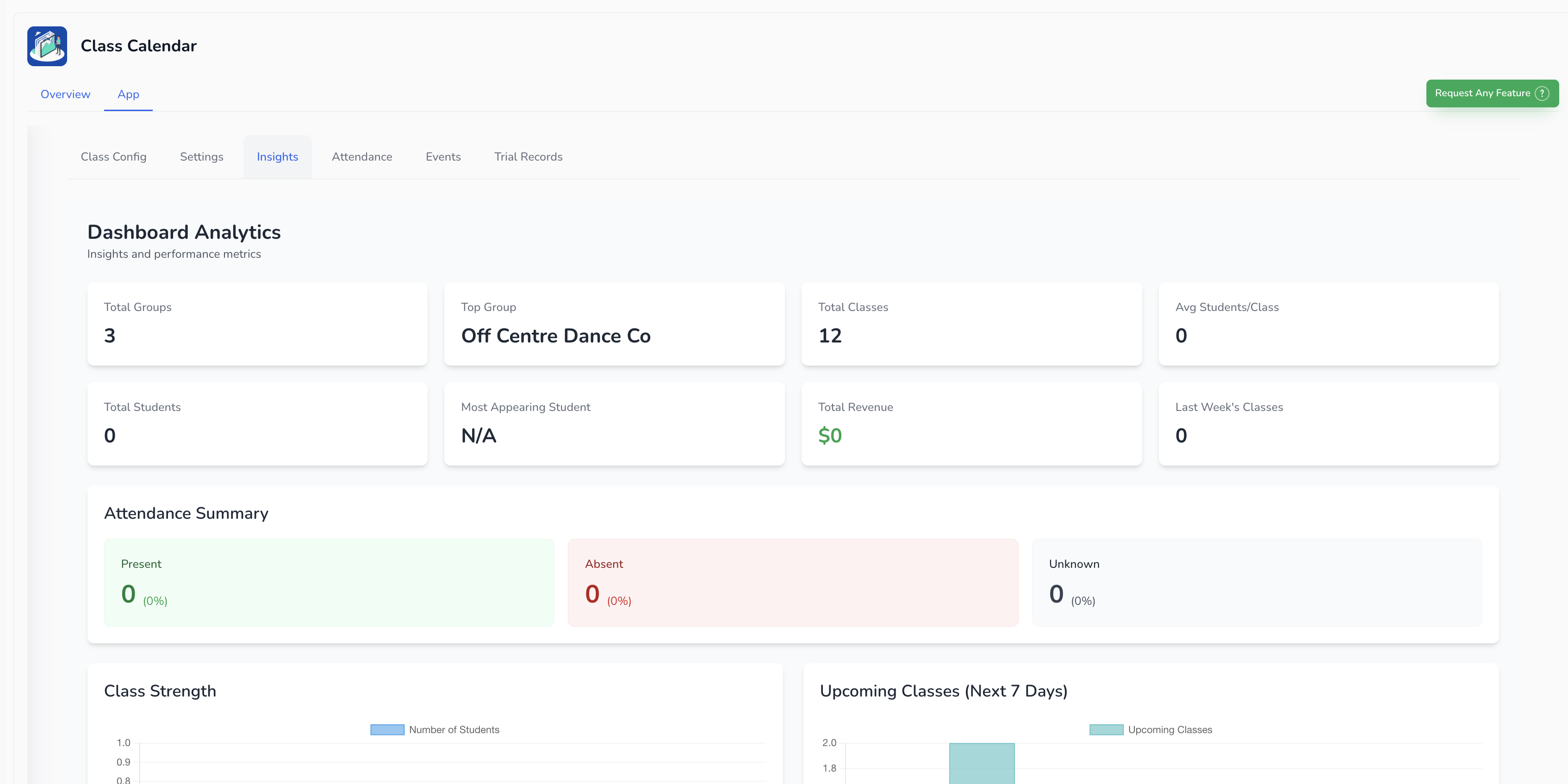
The Insights section gives you performance data for your classes.
You can:
See which classes are performing best
Track booking trends
Monitor attendance patterns (with more analytics features coming soon)
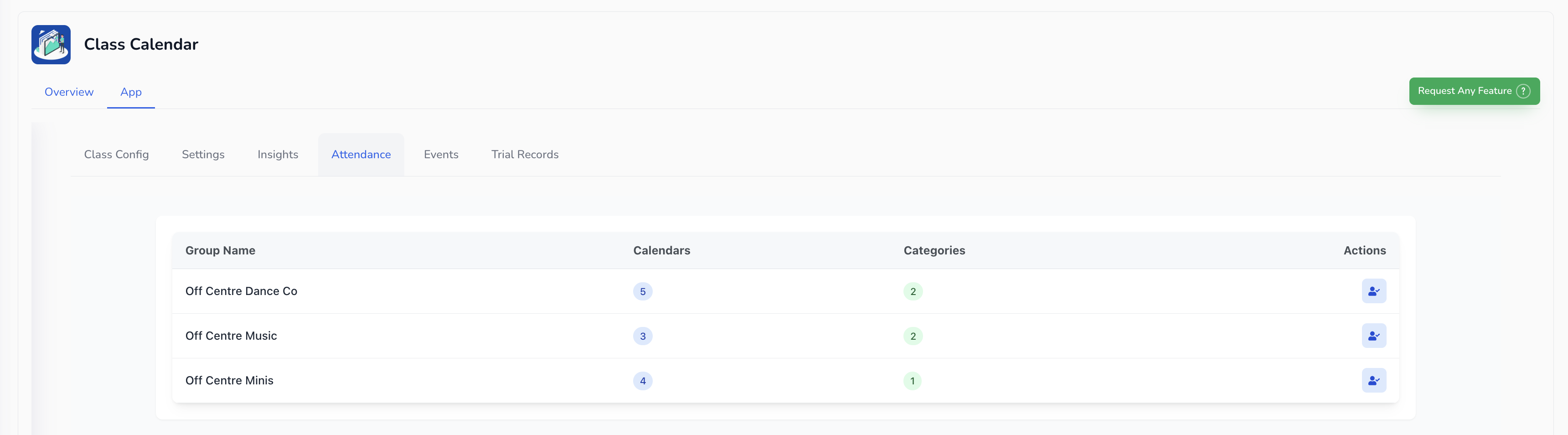
The Attendance tab allows you to:
Mark student attendance for each class
View attendance history
Spot trends such as frequent absences
You can manage attendance here without navigating through each calendar individually.
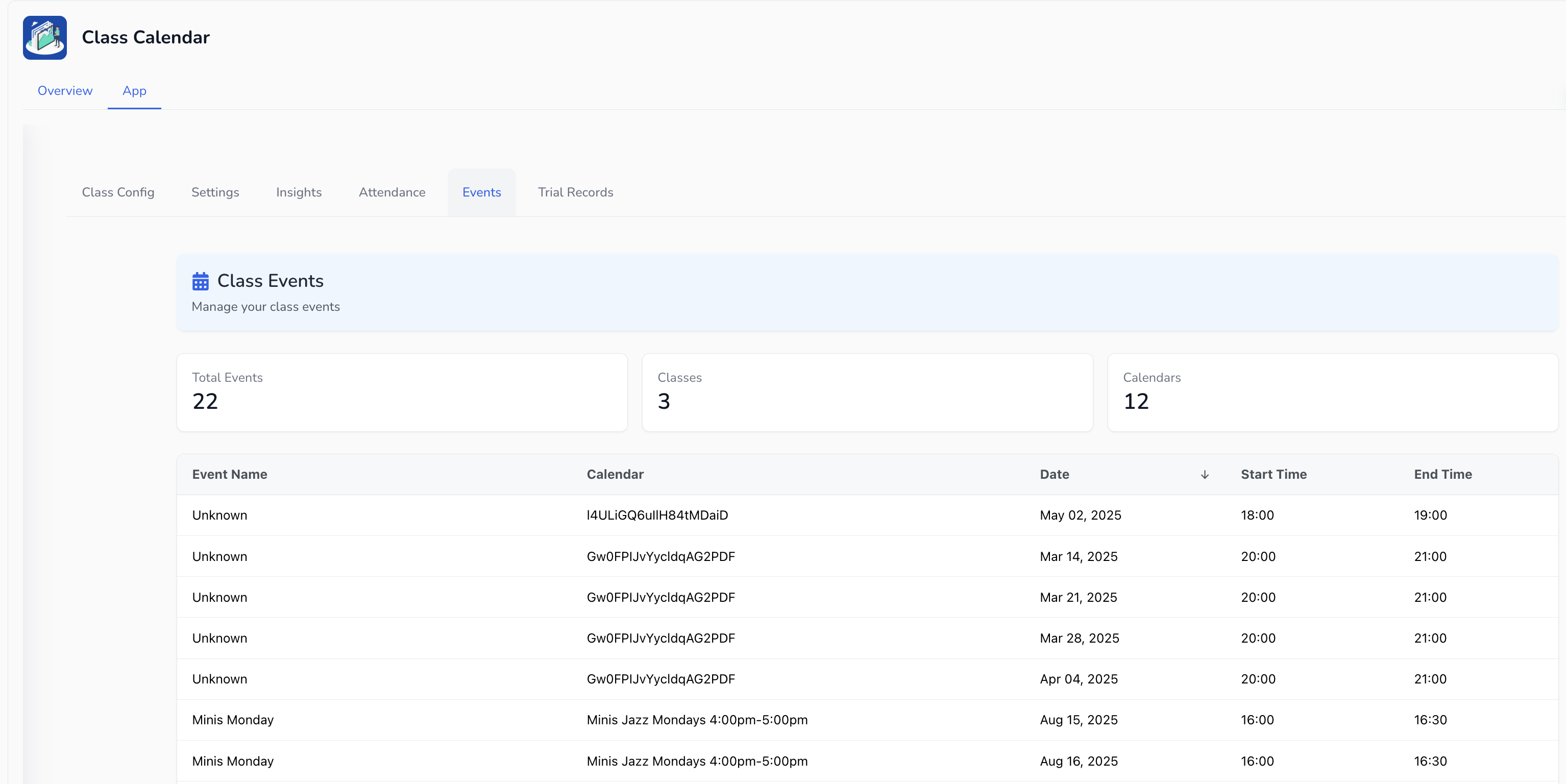
The Upcoming Events section lists all upcoming classes with active bookings.
From here you can:
View your full schedule at a glance
Access class details instantly
Make last-minute adjustments like changing teachers or updating times
The Trial Records tab keeps a centralised log of all trial bookings made through the Class Calendar module.
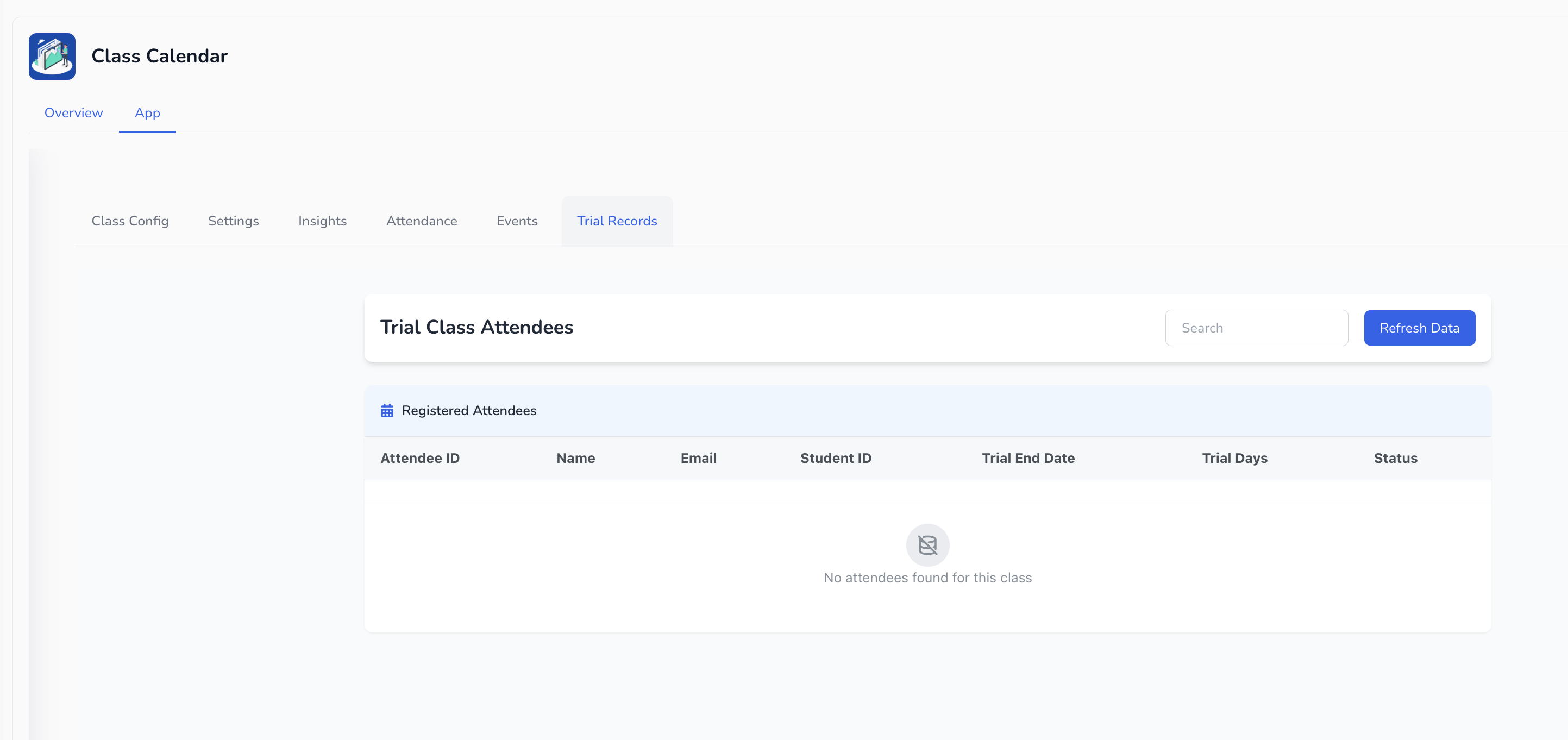
From here you can:
View all students currently on a trial
Check which classes they are trialling
Update status of trial classes
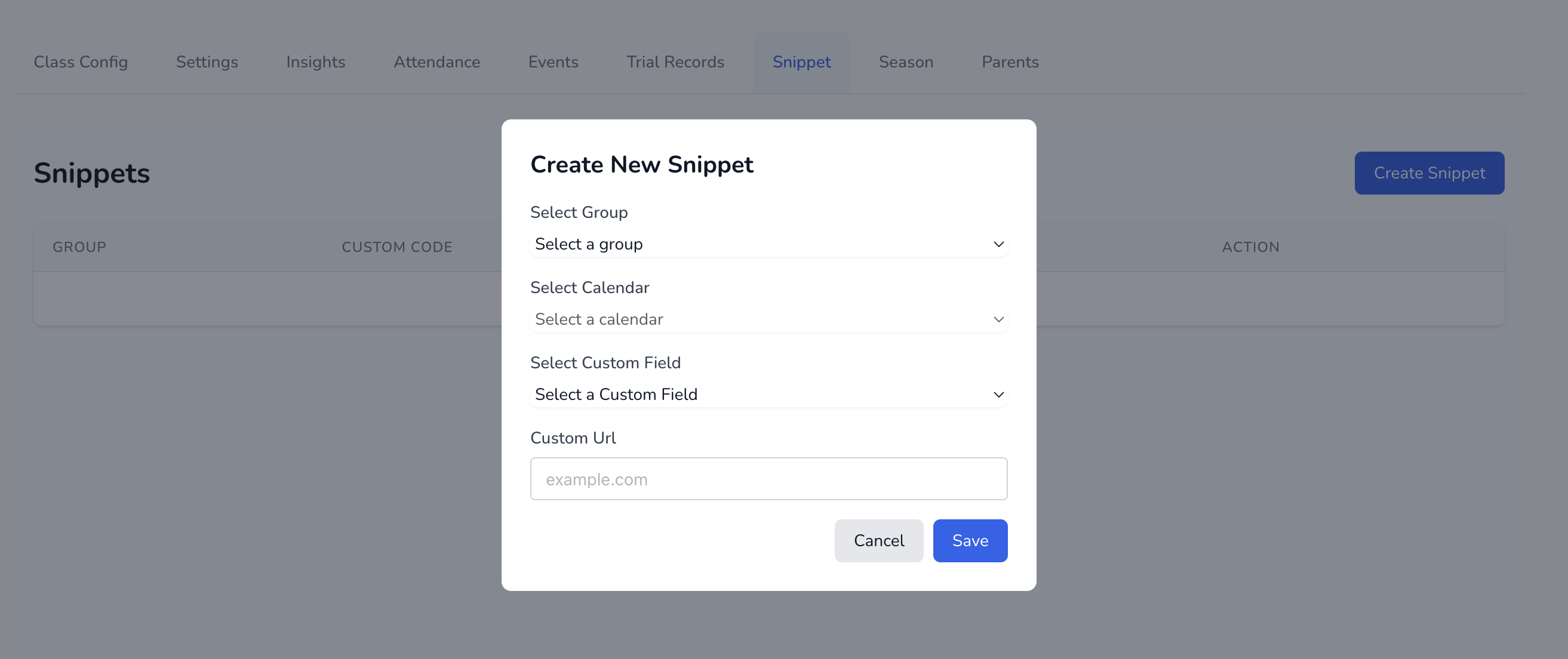
This section allows you to create a HTML snippet to place the class manager signup form onto your website via code rather than a built in widget.
Create your snippet by selecting which classes you want to show and then copy and paste the code into your website.
This works for websites not currently hosted on My Studio Manager.
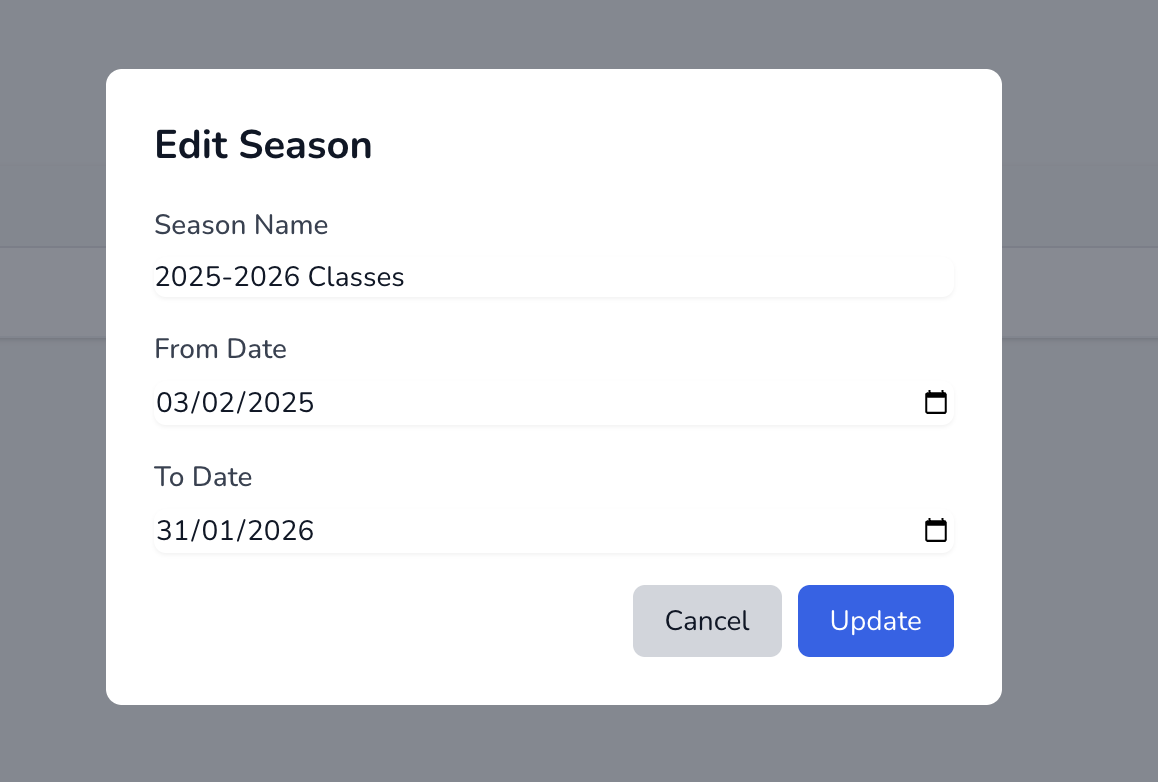
This section allows you to create a season for use when you create your classes. This will preselect a set of dates for your classes so you no longer have to enter them in individually for each class.
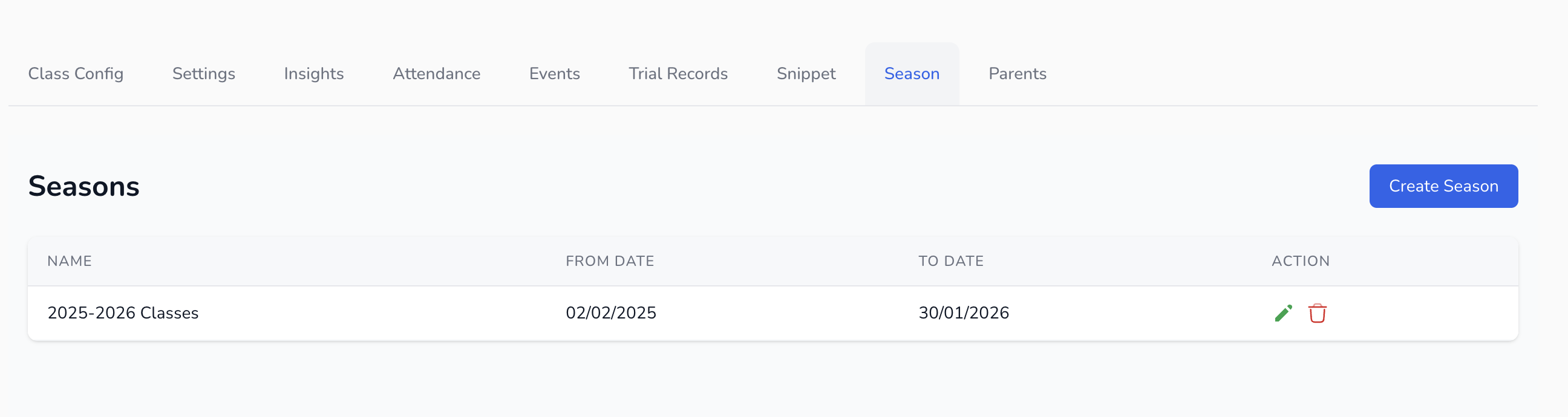
To edit a season click on the green pencil icon.